
How to Change the Style in cPanel (2026 Beginner’s Guide)
How to Change the Style in cPanel (2026 Beginner’s Guide)
Change cPanel Style to personalize the appearance of your hosting dashboard and improve your user experience. Whether you prefer a different theme or want a more comfortable interface, changing the style in cPanel is quick and easy. In this 2026 beginner’s guide, you’ll learn how to change cPanel style step by step and switch to the design that best suits your preferences.

What Is Changing the Style in cPanel?
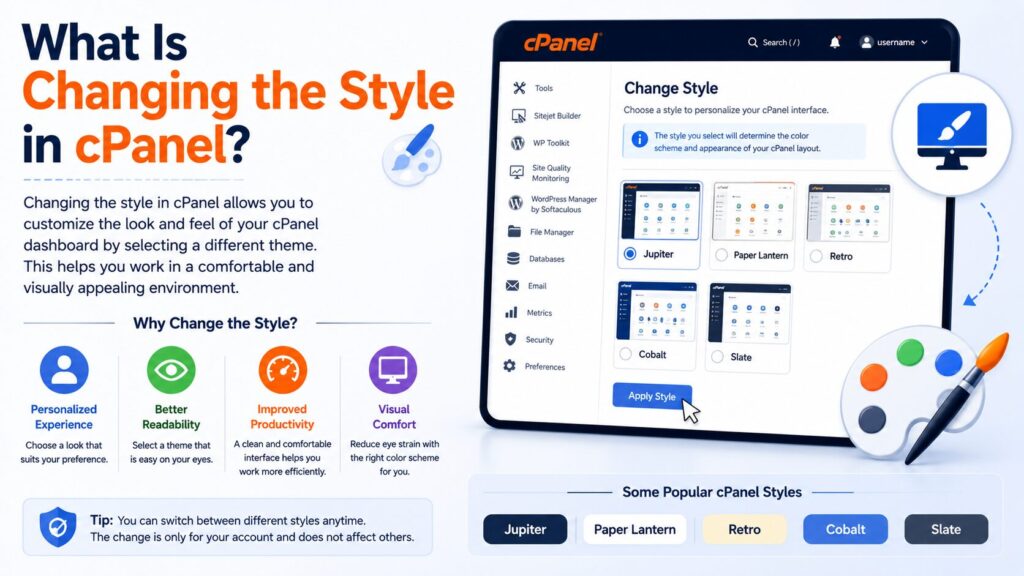
A style in cPanel controls the overall appearance of the control panel, including colors, icons, menus, and layout.
Think of it like changing the theme on your smartphone. Your apps and data stay the same, but the way everything looks changes.
For example:
- Dark-themed interface
- Light-themed interface
- Different icon layouts (depending on your hosting provider)
Changing your cPanel style does not affect your website, emails, databases, or hosting settings.
Why Is It Important?
Changing the style can make cPanel more comfortable and easier to use.
Benefits include:
- Better visibility
- Easier navigation
- Personalized workspace
- Reduced eye strain with dark themes
- Improved productivity
You might want to change your style if:
- You dislike the current appearance.
- Your hosting provider offers multiple themes.
- You prefer a dark or light interface.
- You’re using cPanel for long periods.
Requirements Before You Start
Before changing your cPanel style, make sure you have:
- ✅ Active web hosting account
- ✅ cPanel login credentials
- ✅ Modern web browser (Chrome, Firefox, Edge, Safari)
- ✅ Stable internet connection
- ✅ Access to the Preferences section
Note: Most hosting providers include only one modern style (Jupiter). Some providers may offer additional styles or custom themes.
Step-by-Step Guide
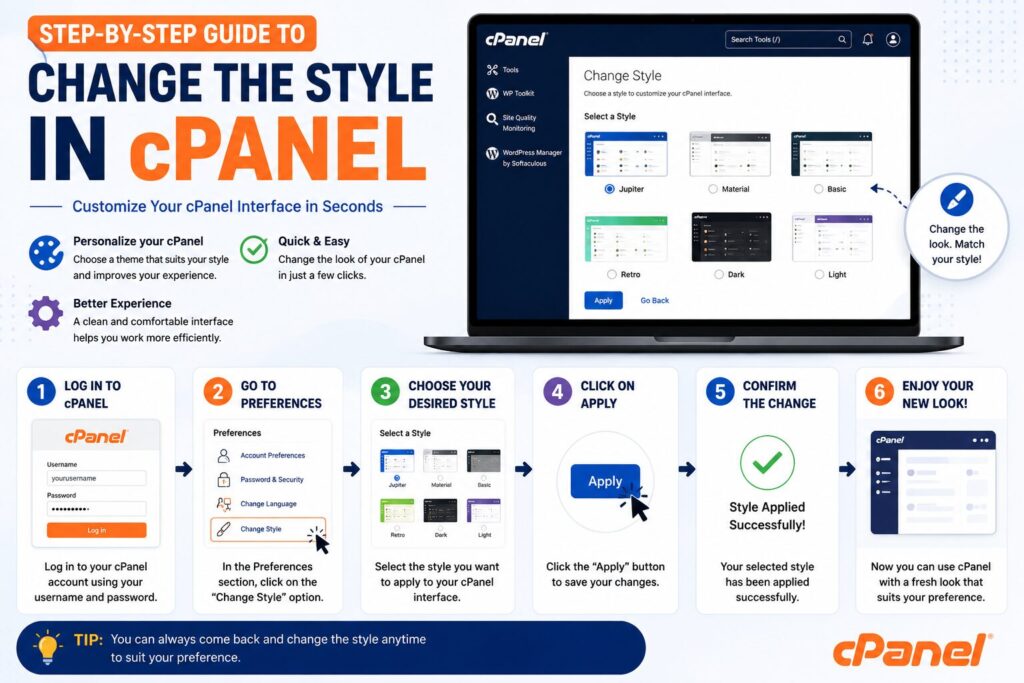
Step 1: Log in to cPanel
What to do
Sign in to your hosting account and open cPanel.
Why you’re doing it
You need access to your cPanel dashboard before making any changes.
What you’ll see
The main cPanel dashboard with different tools and categories.
Beginner Tip
Bookmark your cPanel login page for quicker access.
Common Mistake
Avoid logging into an outdated or incorrect cPanel URL.
Step 2: Open the Preferences Section
What to do
Scroll to the Preferences section.
Look for:
Style (or a similarly named option depending on your hosting provider).
Why you’re doing it
This section lets you customize how cPanel looks.
What you’ll see
Your current style and available alternatives.
Beginner Tip
If you cannot find Style, use the search bar at the top of cPanel.
Common Mistake
Don’t confuse Style with Change Language or Contact Information.
Step 3: View Available Styles
What to do
Click Style.
You’ll see all styles your hosting provider allows.
Why you’re doing it
This page lets you preview and select a new appearance.
What you’ll see
- Current style
- Preview thumbnails
- Style names
- Apply button
Beginner Tip
Some hosting companies only provide one style.
Step 4: Select Your Preferred Style
What to do
Choose the style you like.
Click Apply or Set as Current.
Why you’re doing it
This updates the appearance of your cPanel interface.
What you’ll see
The dashboard refreshes with the new design.
Beginner Tip
You can change it again anytime.
Common Mistake
Don’t worry if the page refreshes—it is completely normal.
Step 5: Verify the New Style
What to do
Browse around cPanel.
Check menus, icons, and navigation.
Why you’re doing it
Make sure you’re comfortable using the new style.
What you’ll see
A refreshed interface while all your hosting data remains unchanged.
Beginner Tip
If you don’t like the new appearance, simply switch back.
Types of cPanel Styles
Depending on your hosting provider, you may see one or more of these.
| Style | Description |
|---|---|
| Jupiter | The modern default cPanel interface. |
| Paper Lantern | Older cPanel theme used on legacy servers. |
| Custom Theme | A hosting provider’s customized version of cPanel. |
Some hosting providers disable style switching completely.
Best Practices
- Keep your cPanel updated.
- Choose a style that’s easy to read.
- Use dark mode if available for long work sessions.
- Avoid changing styles frequently.
- Refresh your browser after switching.
- Clear browser cache if the new style doesn’t load correctly.
Common Problems and Solutions
| Problem | Solution |
|---|---|
| Style option missing | Your hosting provider may have disabled style changes. |
| Only one style available | This is normal on many hosting accounts. |
| Style doesn’t change | Refresh the page or clear browser cache. |
| Layout looks broken | Try another browser or clear cached files. |
| Icons missing | Log out and log back into cPanel. |
| Permission denied | Contact your hosting provider. |
Frequently Asked Questions (FAQs)
1. Is changing the style in cPanel safe?
Yes. It only changes the appearance of cPanel.
2. Will my website stop working?
No.
Your website, emails, databases, and files remain unchanged.
3. Can I switch back later?
Yes.
You can change the style whenever you want.
4. Why can’t I find the Style option?
Some hosting companies disable this feature or only provide one style.
5. Does changing the style affect website performance?
No.
It only changes how cPanel looks.
6. Is Jupiter better than Paper Lantern?
Jupiter is newer, faster, mobile-friendly, and receives regular updates.
7. Can I install my own cPanel theme?
Regular hosting users usually cannot. Only server administrators may have this option.
8. Why do screenshots online look different?
Different hosting providers may use different cPanel versions or custom themes.
Best Beginner Checklist
Before changing your cPanel style:
- ✅ Log in to cPanel
- ✅ Open Preferences
- ✅ Click Style
- ✅ Choose a style
- ✅ Apply changes
- ✅ Refresh the dashboard
- ✅ Verify the new appearance
Conclusion
Changing the style in cPanel is a quick and safe way to personalize your hosting dashboard. Whether you prefer a modern interface, improved readability, or a different layout, switching styles takes only a few clicks and does not affect your website or hosting data.
If your hosting provider offers multiple styles, try them to find the one that works best for you. Remember, you can always switch back whenever you like.
