
How to Edit or Delete CNAME Record in cPanel Using DNS Zone Editor (2026)
How to Edit or Delete CNAME Record in cPanel Using DNS Zone Editor (2026)
Changing your website’s DNS settings may sound complicated, but editing or deleting a CNAME record in cPanel is actually simple once you know where to look.
Whether you’re connecting a subdomain to a new service, removing an outdated DNS record, or fixing a domain configuration issue, this guide will walk you through the entire process using the DNS Zone Editor in cPanel.
By the end of this tutorial, you’ll know how to safely edit or delete a CNAME record without affecting your website.

What Is Editing or Deleting a CNAME Record?
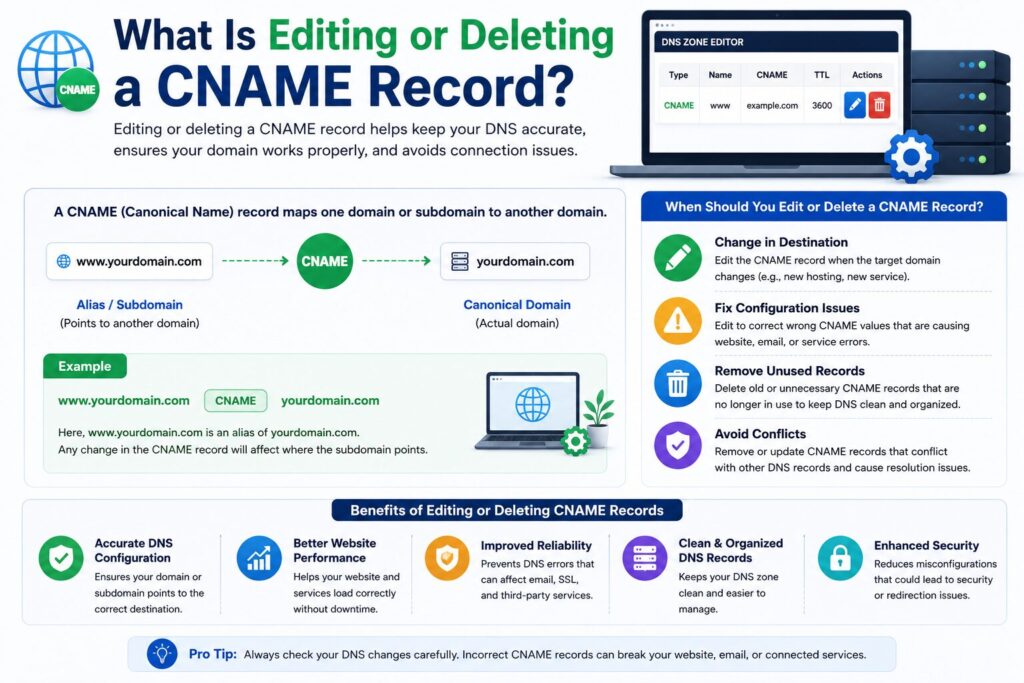
A CNAME (Canonical Name) record is a DNS record that points one domain or subdomain to another domain instead of directly to an IP address.
Editing a CNAME record means changing where it points.
Deleting a CNAME record removes that alias completely.
Real-world example
Suppose:
blog.example.compoints to:
ghs.googlehosted.comIf you stop using that service or switch to another provider, you’ll need to edit the CNAME to the new destination or delete it if it’s no longer needed.
Why Is It Important?
Updating or removing CNAME records helps keep your DNS settings accurate.
Benefits include:
- Connect your website to a new service
- Fix incorrect DNS settings
- Remove outdated records
- Improve website reliability
- Prevent DNS conflicts
- Simplify DNS management
Common situations include:
- Moving to a new hosting provider
- Changing CDN providers
- Switching email or website services
- Removing unused subdomains
Important: Incorrect DNS changes can temporarily make a subdomain unavailable. Always double-check before saving.
Step-by-Step Guide
Step 1: Log in to cPanel
What to do
Sign in to your hosting account and open your cPanel dashboard.
Why you’re doing it
The DNS Zone Editor is available inside cPanel.
What you’ll see
The main cPanel home screen with various management tools.
Beginner Tip
Use your hosting provider’s client area if you don’t know your cPanel login URL.
Common Mistake
Logging into the wrong hosting account.
Step 2: Open the DNS Zone Editor
What to do
Scroll to the Domains section.
Click:
Zone Editor
Why you’re doing it
This tool lets you manage DNS records for your domains.
What you’ll see
A list of all domains hosted in your account.
Beginner Tip
If you host multiple websites, carefully select the correct domain.
Common Mistake
Editing DNS records for the wrong domain.
Step 3: Open DNS Management
Click Manage next to the domain whose CNAME record you want to edit or delete.
Why
This displays all DNS records for that domain.
You’ll see
A table containing:
- A Records
- AAAA Records
- MX Records
- TXT Records
- CNAME Records
- SRV Records
Step 4: Locate the CNAME Record
Use the search box or scroll until you find the CNAME record.
Example:
| Name | Type | Record |
|---|---|---|
| blog | CNAME | ghs.googlehosted.com |
Beginner Tip
Check both the Name and Target before making changes.
Common Mistake
Editing the wrong CNAME record.
Step 5: Edit the CNAME Record
If you want to change where the subdomain points:
Click the Edit button.
Update the required fields.
Typical fields include:
| Field | Description |
|---|---|
| Name | Subdomain |
| TTL | Cache duration |
| Record | New destination domain |
Click Save Record.
Why
This updates the DNS destination.
What to Expect
A confirmation message appears.
The DNS update usually begins immediately.
Beginner Tip
Copy the new destination exactly as provided by your service.
Common Mistake
Typing an incorrect hostname.
Step 6: Delete the CNAME Record
If the record is no longer needed:
Click Delete beside the CNAME record.
Confirm the deletion.
Why
Removes unnecessary DNS entries.
What You’ll See
The record disappears from the DNS list.
Beginner Tip
Delete records only if you’re certain they’re no longer required.
Common Mistake
Deleting active DNS records used by your website or services.
Step 7: Wait for DNS Propagation
Changes usually take effect within:
- A few minutes
- Up to 24 hours
- Sometimes 48 hours worldwide
This process is called DNS propagation.
During this time, some users may still see the old record.
Understanding CNAME Records
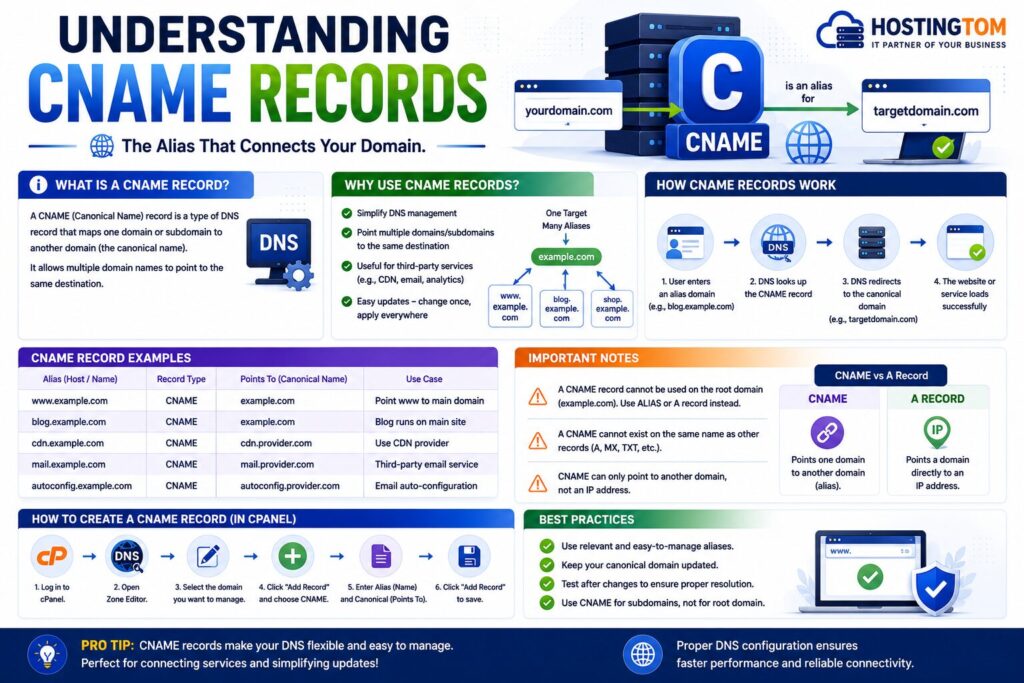
Unlike backups, DNS records come in different types.
| Record Type | Purpose |
|---|---|
| CNAME | Points one hostname to another hostname |
| A Record | Points a domain to an IPv4 address |
| AAAA Record | Points to an IPv6 address |
| MX Record | Handles email delivery |
| TXT Record | Stores verification and security information |
Best Practices
- Keep DNS records organized.
- Double-check every change before saving.
- Remove unused CNAME records.
- Keep a backup of your DNS settings.
- Wait for propagation before troubleshooting.
- Avoid creating duplicate CNAME records.
- Follow instructions from your hosting provider or third-party service.
Common Problems and Solutions
| Problem | Solution |
|---|---|
| Can’t edit the record | Check if you have DNS permissions. |
| Wrong destination | Verify the hostname provided by the service. |
| Website still loads old data | Wait for DNS propagation. |
| Record not saving | Refresh the page and try again. |
| DNS conflict | Remove duplicate records. |
| Subdomain not working | Confirm the CNAME target is correct. |
Frequently Asked Questions
1. Is it safe to edit a CNAME record?
Yes, as long as you enter the correct destination.
2. Can I recover a deleted CNAME record?
Only if you know the previous values or have a DNS backup.
3. How long do DNS changes take?
Usually a few minutes to 24 hours.
4. Will editing a CNAME affect my main website?
Normally, only the associated subdomain is affected.
5. Can I create multiple CNAME records for the same subdomain?
No. Each hostname should have only one CNAME record.
6. What happens if I delete a required CNAME record?
The connected service or subdomain may stop working.
7. Should I edit or create a new CNAME?
If the hostname already exists, edit it instead of creating a duplicate.
8. Can I undo DNS changes?
Not automatically. You’ll need to manually restore the previous values.
Conclusion
Learning how to edit or delete CNAME Record in cPanel using the DNS Zone Editor is an important skill for website owners and beginners managing their own hosting.
Whether you’re updating a service, fixing DNS settings, or removing outdated records, cPanel makes the process quick and easy. Always verify the information before saving changes, keep a backup of your DNS settings, and allow enough time for DNS propagation.
Following the steps in this guide will help you manage your DNS records confidently while avoiding common mistakes.
