
How to Update Your Contact Information in cPanel (2026 Guide)
How to Update Your Contact Information in cPanel
Keeping your contact information in cPanel up to date is one of the easiest ways to protect your website. If your email address is outdated, you could miss important notifications about backups, password changes, disk usage, or security alerts.
In this beginner-friendly guide, you’ll learn exactly how to update your contact information in cPanel, why it matters, and the best practices for keeping your hosting account secure.

What Is Updating Contact Information in cPanel?
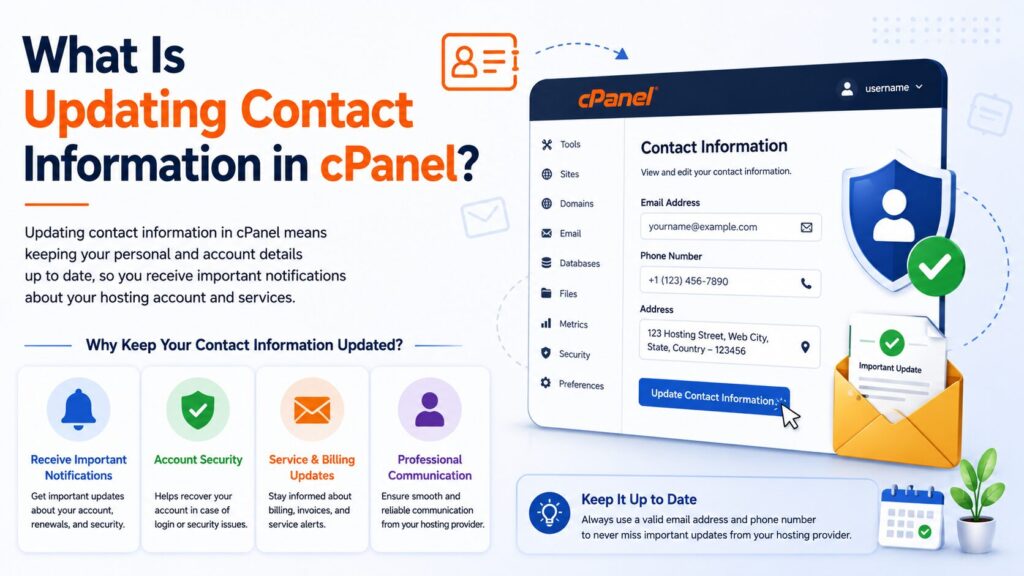
Updating your contact information means changing the email address that cPanel uses to send you important notifications.
These notifications may include:
- Password reset emails
- Security alerts
- Backup notifications
- Disk space warnings
- Server maintenance notices
Real-World Example
Imagine you changed your business email from [email protected] to [email protected], but your cPanel still has the old address.
If your website has a security issue, the alert will go to the old email, and you may never see it.
Keeping your contact information current helps ensure you never miss important updates.
Why Is It Important?
Updating your contact information offers several benefits.
- Receive important hosting notifications
- Get password reset emails
- Stay informed about server issues
- Improve account security
- Avoid missing maintenance announcements
- Keep communication with your hosting provider active
This is especially helpful if you:
- Changed your email address
- Switched companies
- Use a new business email
- Manage multiple websites
Requirements Before You Start
Before updating your contact information, make sure you have:
| Requirement | Why You Need It |
|---|---|
| Hosting account | Access to your website |
| cPanel login credentials | To log in |
| Working internet browser | Chrome, Firefox, Edge, Safari, etc. |
| Access to your new email | To receive notifications |
| Verified email address | Recommended for security |
Note: No website files or databases are changed when updating your contact information.
Step-by-Step Guide
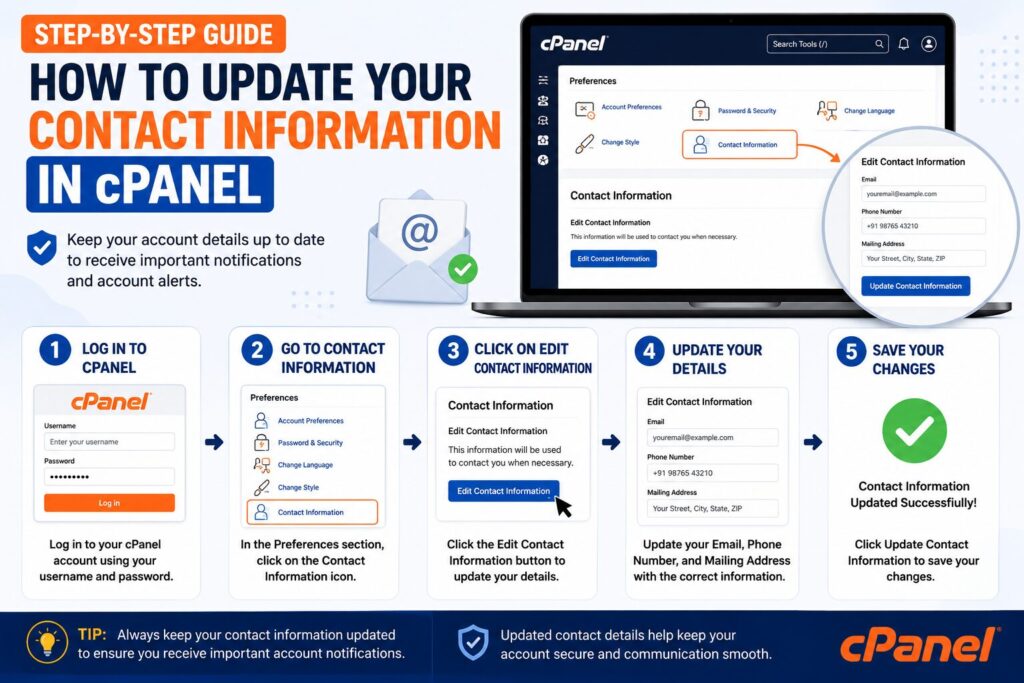
Step 1: Log in to cPanel
What to Do
Open your hosting provider’s cPanel login page.
Enter your:
- Username
- Password
Click Log In.
Why You’re Doing It
You must access the cPanel dashboard before changing account settings.
What You’ll See
The main cPanel dashboard with different management sections.
Beginner Tip
Bookmark your cPanel login page for future use.
Common Mistake
Entering incorrect login credentials.
Step 2: Open Contact Information
Scroll down or use the search bar.
Search for:
Contact Information
Click the Contact Information icon.
Why You’re Doing It
This page lets you manage where cPanel sends important notifications.
What You’ll See
A page containing:
- Contact email address
- Notification preferences
Beginner Tip
If you cannot find it, use the search box at the top of cPanel.
Common Mistake
Opening User Manager instead of Contact Information.
Step 3: Enter Your New Email Address
Replace the old email with your new email address.
Example:
Why You’re Doing It
This becomes the primary email used for cPanel notifications.
What You’ll See
An email address field ready for editing.
Beginner Tip
Use an email address you check regularly.
Common Mistake
Typing the email incorrectly.
Step 4: Review Notification Preferences
Below the email field, you’ll usually find notification options.
Examples include:
- Password changes
- Authentication failures
- Disk quota warnings
- SSL certificate notices
- Account security alerts
Choose which notifications you’d like to receive.
Why You’re Doing It
These settings control which emails cPanel sends you.
What You’ll See
Checkboxes for different notification types.
Beginner Tip
Leave security notifications enabled.
Common Mistake
Disabling all notifications.
Step 5: Save Your Changes
Click:
Save
or
Update Contact Information
(depending on your cPanel version).
Why You’re Doing It
This applies your new settings.
What You’ll See
A success message confirming your changes.
Beginner Tip
Double-check your email address before saving.
Common Mistake
Closing the page without clicking Save.
Contact Information Settings Explained
Although this isn’t a backup feature, you may see several notification options.
| Setting | Purpose |
|---|---|
| Contact Email | Where cPanel sends alerts |
| Password Notifications | Alerts when passwords change |
| Security Notifications | Authentication warnings |
| Disk Usage Alerts | Low storage notifications |
| SSL Notifications | Certificate expiration reminders |
Best Practices
Follow these tips for better account management:
- Use a professional email address.
- Update your email after changing companies.
- Check your inbox regularly.
- Keep security notifications enabled.
- Avoid temporary email addresses.
- Verify your email account works.
- Update contact information immediately after changing domains.
- Review your settings every few months.
Common Problems and Solutions
| Problem | Solution |
|---|---|
| Save button doesn’t work | Refresh the page and try again. |
| Invalid email error | Enter a correctly formatted email address. |
| Not receiving emails | Check your spam folder. |
| Contact Information icon missing | Ask your hosting provider if it’s disabled. |
| Old email still receives notifications | Save changes again and wait a few minutes. |
| Browser issues | Clear browser cache or try another browser. |
Frequently Asked Questions
1. Can I change my contact email anytime?
Yes. You can update it whenever needed.
2. Will changing my contact email affect my website?
No.
It only changes where cPanel sends notifications.
3. Should I use a Gmail or business email?
A business email is recommended, but Gmail works perfectly as well.
4. Can I receive security alerts?
Yes.
Simply keep the security notification options enabled.
5. What happens if my email becomes inactive?
You may miss important alerts, password reset emails, and server notifications.
6. Can I use multiple email addresses?
Most cPanel installations allow only one primary contact email.
7. Do I need to verify my email?
Some hosting providers may ask you to verify it.
8. Why am I not receiving notifications?
Possible reasons include:
- Spam filtering
- Incorrect email
- Disabled notification settings
- Mail server issues
Conclusion
Knowing how to update your contact information in cPanel is a simple but important part of managing your hosting account. By keeping your email address current, you’ll receive essential security alerts, password notifications, and server updates without interruption.
Take a few minutes to review your contact information today. It’s a small task that can help you avoid missing important hosting notifications in the future.
