
How to Set the PHP Version per Folder (2026 Beginner’s Guide)
Introduction
If you manage multiple websites or applications, you may need different PHP versions for different folders on the same domain. Learning how to set the PHP version per folder lets you run older applications without affecting the rest of your website.
For example, your main WordPress website might work best with PHP 8.3, while an older script inside a subfolder only supports PHP 7.4. Instead of changing the PHP version for your entire domain, you can assign a different version to just that folder.
In this guide, you’ll learn how to set the PHP version for a specific folder, what you need before starting, common mistakes to avoid, and troubleshooting tips.

What Is Setting the PHP Version per Folder?
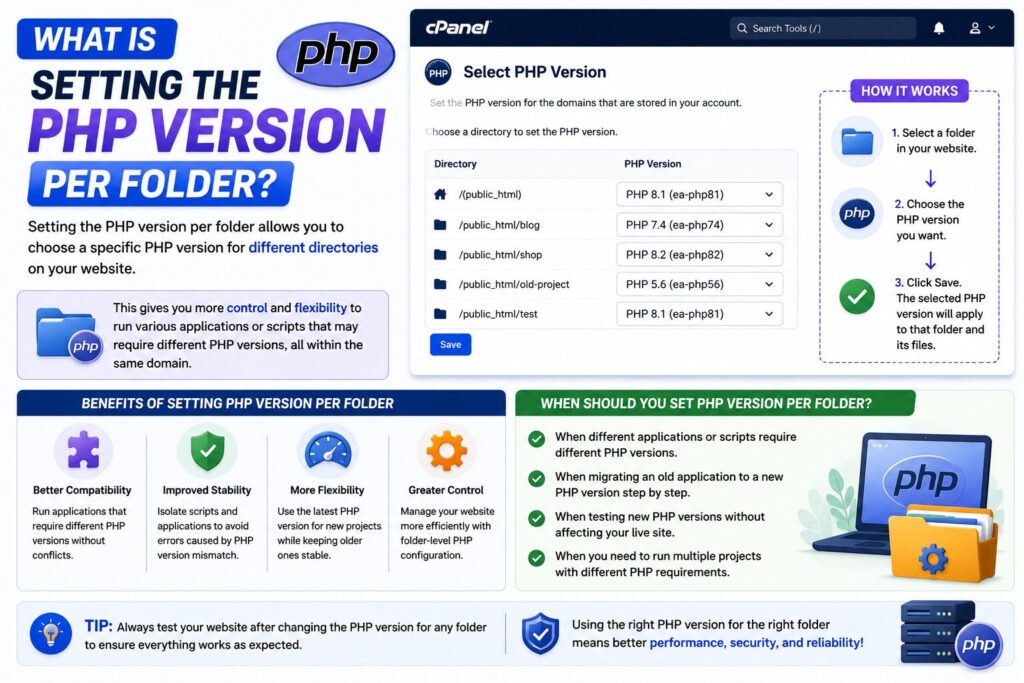
Setting the PHP version per folder means assigning a different PHP version to a specific directory inside your website instead of changing it for the entire domain.
For example:
| Folder | PHP Version |
|---|---|
| public_html | PHP 8.3 |
| public_html/old-app | PHP 7.4 |
| public_html/shop | PHP 8.2 |
This allows different applications to run independently using the PHP version they require.
Real-world Example
Imagine your main website uses the latest version of WordPress, but you still have an old billing application that only supports PHP 7.4.
Instead of downgrading your whole website, you simply assign PHP 7.4 to the billing folder while keeping everything else on PHP 8.3.
Why Is It Important?
Setting PHP versions per folder is useful because it lets you:
- Keep older applications running
- Use newer PHP versions for better speed
- Improve security
- Avoid compatibility problems
- Test new applications safely
- Run multiple PHP applications on one hosting account
Step-by-Step Guide to Set the PHP Version per Folder
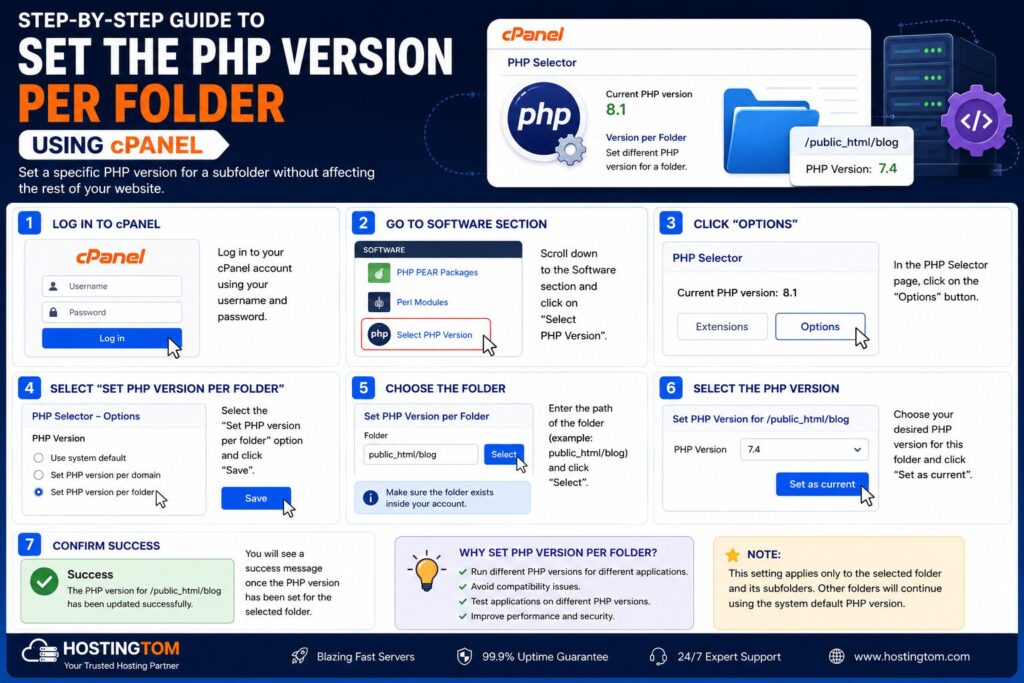
Step 1: Log in to cPanel
What to do
Log in to your hosting account and open cPanel.
Why
You’ll manage your website files and PHP settings from here.
What you’ll see
The cPanel dashboard with tools like:
- File Manager
- Domains
- MultiPHP Manager
- PHP Selector
Beginner Tip
Bookmark your cPanel login page for future use.
Common Mistake
Entering incorrect login credentials.
Step 2: Open File Manager
What to do
Open File Manager and navigate to the folder where you want a different PHP version.
Example:
public_html/old-app/Why
The PHP configuration will only affect this folder.
What you’ll see
Your website files, including:
- index.php
- config.php
- images
- uploads
Beginner Tip
Double-check you’re inside the correct folder before editing files.
Common Mistake
Editing the wrong folder.
Step 3: Show Hidden Files
What to do
Enable Show Hidden Files (Dotfiles) inside File Manager.
Why
The .htaccess file is hidden by default.
What you’ll see
The hidden .htaccess file.
Beginner Tip
If it doesn’t exist, create a new .htaccess file.
Common Mistake
Thinking the file doesn’t exist because hidden files are disabled.
Step 4: Edit the .htaccess File
What to do
Open the .htaccess file inside the folder.
Add the PHP handler provided by your hosting company.
Example:
AddHandler application/x-httpd-ea-php74 .phpor
AddHandler application/x-httpd-ea-php82 .phpWhy
This tells the server which PHP version to use for files inside this folder.
What you’ll see
The .htaccess editor.
Beginner Tip
Ask your hosting provider which PHP handler names they support.
Common Mistake
Using an incorrect PHP handler.
Step 5: Save the File
What to do
Click Save after making your changes.
Why
The new PHP version won’t apply until the file is saved.
What you’ll see
A success message.
Beginner Tip
Keep a copy of the original .htaccess before editing.
Common Mistake
Closing the editor without saving.
Step 6: Verify the PHP Version
What to do
Create a file named:
phpinfo.phpInside it, add:
<?php
phpinfo();
?>
Visit:
https://yourdomain.com/folder/phpinfo.phpWhy
This confirms the folder is using the correct PHP version.
What you’ll see
A page displaying detailed PHP information.
Beginner Tip
Delete the phpinfo.php file after testing because it exposes server information.
Common Mistake
Leaving the file publicly accessible.
When Is This Feature Useful?
You might set a PHP version per folder when:
- Running legacy PHP applications
- Hosting multiple scripts
- Testing software
- Migrating websites
- Developing new projects
- Maintaining older CMS installations
Best Practices
- Always create a backup first.
- Use the latest supported PHP version whenever possible.
- Remove old PHP versions when no longer needed.
- Test your website after changing PHP versions.
- Keep applications updated.
- Delete
phpinfo.phpafter testing. - Document any custom PHP settings.
Common Problems and Solutions
| Problem | Solution |
|---|---|
| PHP version didn’t change | Check the .htaccess syntax. |
| Internal Server Error | Restore the previous .htaccess file. |
| Website shows blank page | Enable PHP error logs and check compatibility. |
| Old application still fails | It may not support the selected PHP version. |
| PHP info shows wrong version | Clear browser cache and verify the correct folder. |
| Permission denied | Ensure the .htaccess file has proper permissions. |
FAQs
Can I use different PHP versions in different folders?
Yes, if your hosting provider supports folder-level PHP handlers.
Does changing one folder affect the whole website?
No. Only the selected folder and its subfolders are affected.
Is this supported on every hosting account?
No. Support depends on your hosting provider and server configuration.
Can WordPress use a different PHP version than another folder?
Yes. Your WordPress installation can use one PHP version while another application uses a different one.
Is editing .htaccess safe?
Yes, but always keep a backup before making changes.
How do I know which PHP handler to use?
Your hosting provider or hosting documentation will list the available PHP handlers.
Can I switch back later?
Yes. Simply remove or update the PHP handler in the .htaccess file.
Will changing the PHP version delete my files?
No. It only changes how PHP files are processed.
Conclusion
Knowing how to set the PHP version per folder is a useful skill when managing multiple applications on a single hosting account. It allows older software to continue working while your main website benefits from newer, faster, and more secure PHP versions.
Before making any changes, always create a backup, verify the correct PHP handler with your hosting provider, and test your application after updating the configuration. With the right setup, you can safely run multiple PHP versions without affecting your entire website.
