
How to Download Backup Using cPanel (Beginner’s Guide 2026)
How to Download Backup Using cPanel (Step-by-Step Beginner Guide)
Introduction
Backing up your website is one of the most important tasks every website owner should perform. Whether you own a personal blog, business website, online store, or portfolio, having a recent backup protects your valuable data from accidental deletion, hacking, malware, server failures, or software errors.
Fortunately, cPanel makes downloading website backups simple—even if you have no technical knowledge. With just a few clicks, you can save copies of your website files, databases, email accounts, and settings directly to your computer.
In this beginner-friendly guide, you’ll learn exactly how to download a backup using cPanel, understand the different backup options available, and discover best practices for keeping your website secure. We’ll also explain when to use a Full Backup versus a Partial Backup and how often you should create backups.
If you’re using shared hosting, Germany VPS Hosting, Cheap VPS Germany, NVMe Germany VPS, or the Best Germany VPS Hosting, knowing how to download backups is an essential website management skill. Regular backups ensure that you can quickly restore your website whenever something unexpected happens.
Let’s get started with the complete step-by-step process.
Why Website Backups Are Important
Website backups provide a safety net for your online business.
Benefits include:
- Protect against hacking
- Recover deleted files
- Restore website after updates fail
- Protect databases
- Recover from malware attacks
- Migrate to another hosting provider
- Restore email accounts
Without backups, recovering your website can be difficult and expensive.
What is cPanel Backup?
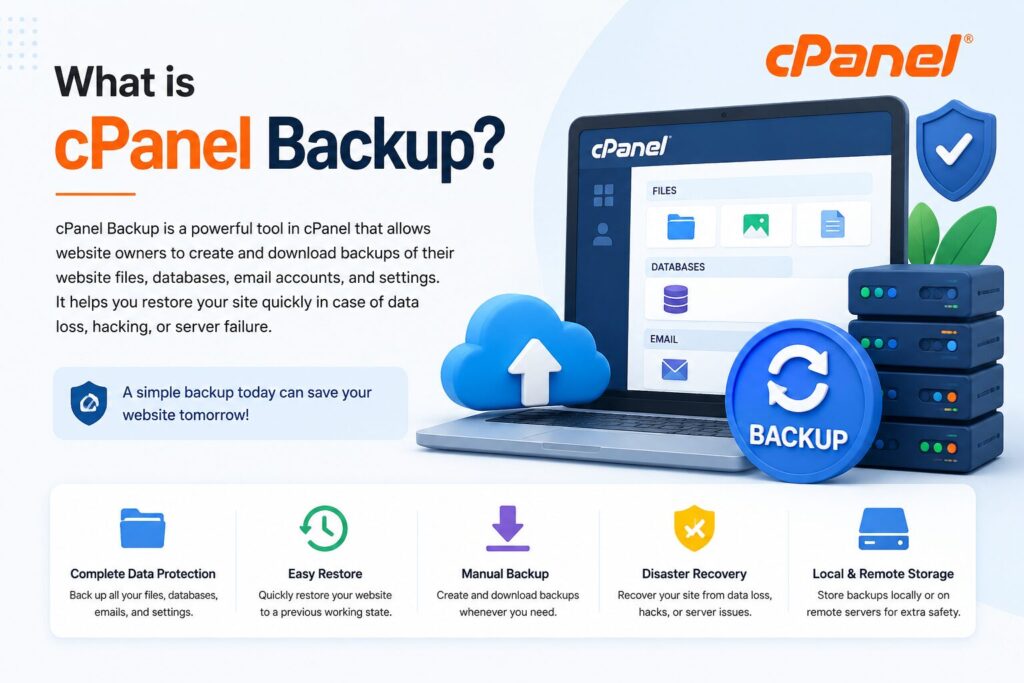
The Backup feature inside cPanel allows users to download copies of:
- Website files
- MySQL databases
- Email accounts
- Email forwarders
- Email filters
- Full account backups
These backups can later be restored if something goes wrong.
Types of Backups in cPanel
| Backup Type | Includes | Best For |
|---|---|---|
| Full Backup | Entire hosting account | Migration & disaster recovery |
| Home Directory Backup | Website files | File recovery |
| MySQL Backup | Website database | WordPress restoration |
| Email Forwarders | Email settings | Email migration |
| Email Filters | Spam rules | Email configuration |
How to Download Backup Using cPanel
Step 1: Login to cPanel
Open your hosting account’s cPanel.
Enter:
- Username
- Password
Click Login.
Step 2: Find the Backup Tool
Scroll down.
Under the Files section click:
Backup
or
Backup Wizard
Both options allow downloading backups.
Step 3: Choose Backup Type
You’ll see several options.
For beginners:
Choose Download a Full Website Backup if you want everything.
Or select individual backups if you only need specific data.
Step 4: Download Home Directory
Click:
Home Directory
The download begins automatically.
This backup contains:
- Website files
- Images
- Themes
- Plugins
- HTML files
Step 5: Download Database Backup
Scroll to:
Download a MySQL Database Backup
Click your database name.
The SQL file downloads to your computer.
This backup contains:
- WordPress posts
- Pages
- Users
- Settings
- Comments
Step 6: Download Email Backups
You can also download:
- Email Forwarders
- Email Filters
These are useful when migrating hosting accounts.
Step 7: Save Backup Safely
Store your backup in multiple locations such as:
- Computer
- External Hard Drive
- Google Drive
- Dropbox
- OneDrive
Never rely on only one backup copy.
Using Backup Wizard
The Backup Wizard is easier for beginners.
Steps:
- Login to cPanel
- Open Backup Wizard
- Click Backup
- Select Full or Partial Backup
- Download files
The Backup Wizard offers a cleaner interface.
Full Backup vs Partial Backup
| Feature | Full Backup | Partial Backup |
|---|---|---|
| Website Files | ✅ | ✅ |
| Database | ✅ | Optional |
| Emails | ✅ | Optional |
| Settings | ✅ | ❌ |
| Migration | Best | Not recommended |
| Restore Entire Account | Yes | No |
Benefits of Downloading Website Backups
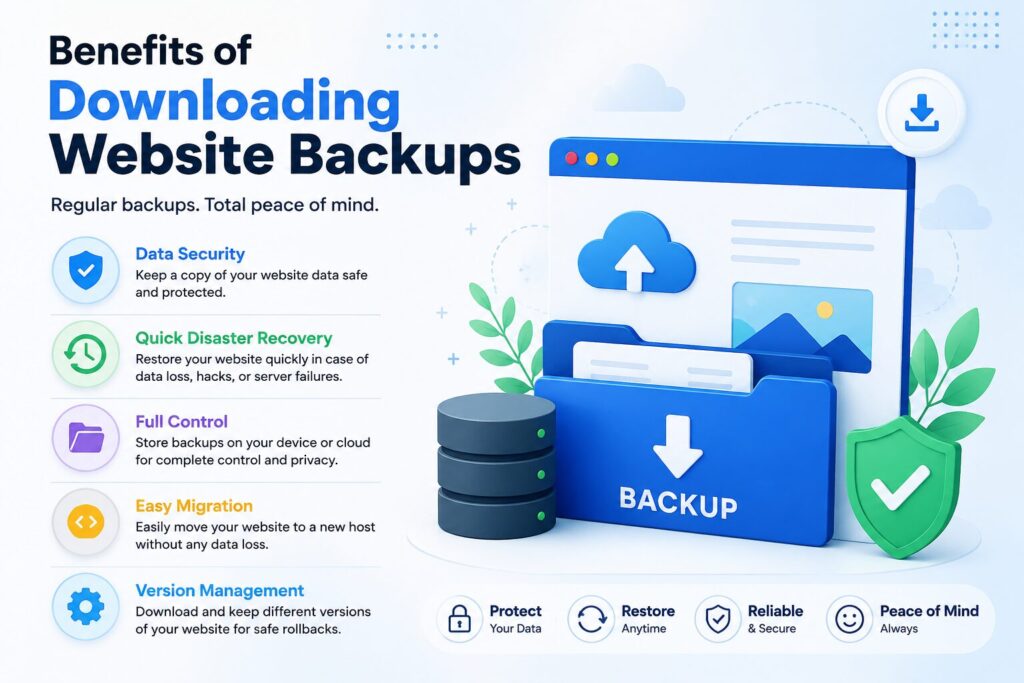
Downloading backups provides many advantages.
Data Protection
Recover lost website files quickly.
Easy Migration
Move your website to another hosting provider.
Malware Recovery
Restore a clean version after attacks.
Safe Updates
Roll back failed plugin or theme updates.
Peace of Mind
Know your website is always recoverable.
Features of cPanel Backup
- One-click backup
- Full account backup
- Partial backup
- Database download
- Email backup
- Beginner-friendly interface
- Fast download
- Secure backup system
Best Practices for Website Backups
Backup Weekly
Small websites should back up every week.
Backup Daily
Busy websites should create daily backups.
Store Multiple Copies
Never keep only one backup.
Test Backups
Ensure backups can actually be restored.
Download Before Updates
Always back up before:
- WordPress updates
- Plugin installations
- Theme changes
Pricing Considerations
Most hosting providers include the cPanel Backup feature at no extra cost.
However, some providers may charge for:
| Feature | Usually Free | Paid Option |
|---|---|---|
| Manual Backup Download | ✅ | Rare |
| Automatic Daily Backup | Sometimes | Often |
| Cloud Backup Storage | ❌ | Yes |
| Premium Backup Retention | ❌ | Yes |
| One-Click Restore | Depends | Often |
If your website is business-critical, investing in automated backups can save significant time and money during emergencies.
Use Cases
Downloading backups is useful in many situations.
Before Website Migration
Move your site safely to another hosting provider.
Before Major Updates
Protect your website before updating WordPress or installing new plugins.
Disaster Recovery
Restore your site after server failures or cyberattacks.
Website Redesign
Create a backup before making major design changes.
Long-Term Storage
Keep historical copies of your website for compliance or archival purposes.
Whether you’re hosting on Germany VPS Hosting, Cheap VPS Germany, NVMe Germany VPS, or the Best Germany VPS Hosting, regular backups are a smart part of website management.
Common Mistakes to Avoid
- Never skip regular backups.
- Don’t store backups only on the same server.
- Avoid overwriting your only backup copy.
- Verify backup files after downloading.
- Back up before making significant website changes.
Frequently Asked Questions (FAQs)
How do I download a full backup in cPanel?
Go to Backup or Backup Wizard, select Full Backup, generate it if needed, and download the backup file once it’s ready.
Is downloading a backup free?
Yes. Most hosting providers include manual backup downloads in cPanel at no additional cost.
How often should I download backups?
- Personal websites: Weekly
- Business websites: Daily
- E-commerce websites: Multiple times per day
Can I restore a downloaded backup?
Yes. Full backups are generally restored by your hosting provider, while partial backups (files and databases) can often be restored manually through cPanel.
Does a backup include my emails?
A Full Backup includes email accounts and configurations. Partial backups allow you to download email forwarders and filters separately.
Where should I store my backups?
Use multiple secure locations such as your local computer, an external drive, and a trusted cloud storage service.
Conclusion
Downloading backups through cPanel is one of the easiest yet most valuable tasks you can perform to protect your website. A recent backup ensures you can recover quickly from accidental deletions, malware, failed updates, or server issues.
Whether you’re running a small blog or managing business websites on Germany VPS Hosting, Cheap VPS Germany, NVMe Germany VPS, or the Best Germany VPS Hosting, maintaining regular backups should be part of your routine.
Choose HostingTom for reliable web hosting solutions with powerful cPanel hosting, high-performance VPS servers, NVMe storage, and dependable support. Start hosting with confidence and keep your website protected with regular backups.
