
How to Edit or Delete A Record in cPanel (2026 Guide)
How to Edit or Delete A Record in cPanel Using the DNS Zone Editor
If your website has moved to a new server or you need to update your domain’s IP address, you’ll need to edit or delete an A Record in cPanel using the DNS Zone Editor.
An A Record is one of the most important DNS records because it tells visitors where your website is hosted. Updating it correctly ensures your website continues to work without interruption.
In this beginner-friendly guide, you’ll learn what an A Record is, when you should edit or delete it, and how to safely make changes using cPanel’s DNS Zone Editor.

What Is an A Record?
An A Record (Address Record) is a DNS record that connects your domain name to an IPv4 address.
For example:
| Domain | IP Address |
|---|---|
| example.com | 192.168.10.20 |
When someone types example.com into their browser, the A Record tells the internet which server hosts the website.
Simple Example
Imagine your website is a house.
- Your domain name is the house name.
- The IP address is the house address.
- The A Record is the map that tells visitors where to go.
If the address changes, you must update the map.
Why Is Editing or Deleting an A Record Important?
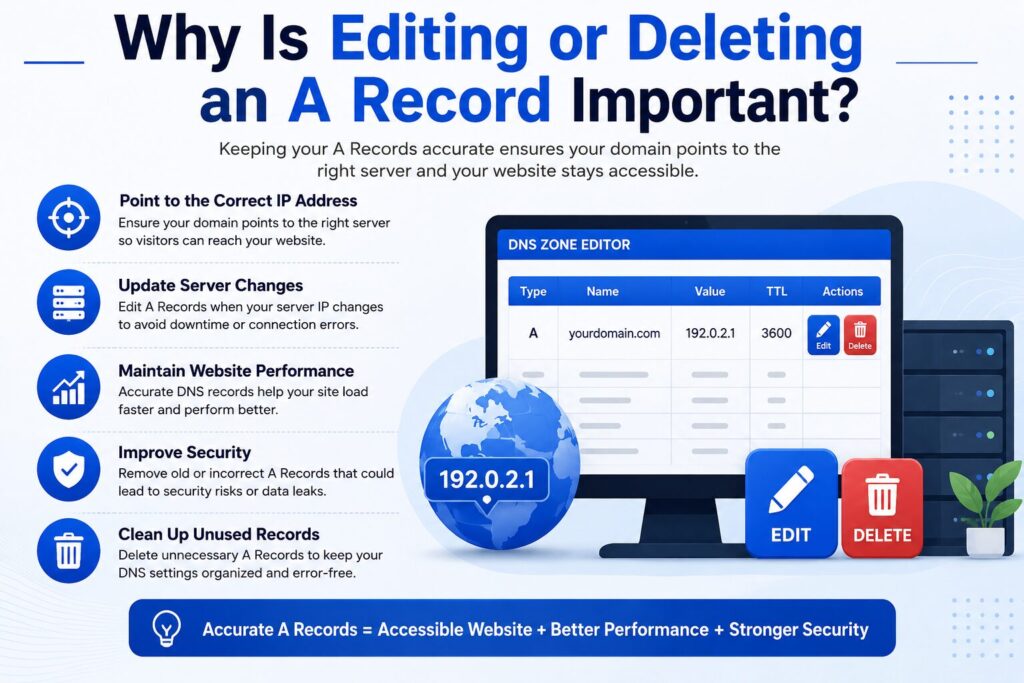
You may need to modify an A Record when:
- Moving your website to another hosting provider
- Changing your server IP address
- Fixing DNS configuration errors
- Removing outdated records
- Cleaning unused DNS entries
- Preventing visitors from reaching the wrong server
Updating the correct A Record helps avoid website downtime.
Requirements Before You Start
Before making changes, make sure you have:
- ✅ A web hosting account
- ✅ Access to cPanel
- ✅ Permission to manage DNS records
- ✅ Your new server IP address (if editing)
- ✅ A recent website backup
- ✅ A modern web browser
- ✅ Stable internet connection
Important: DNS changes may take anywhere from a few minutes to 24–48 hours to fully update across the internet.
Step-by-Step Guide to Edit or Delete an A Record in cPanel
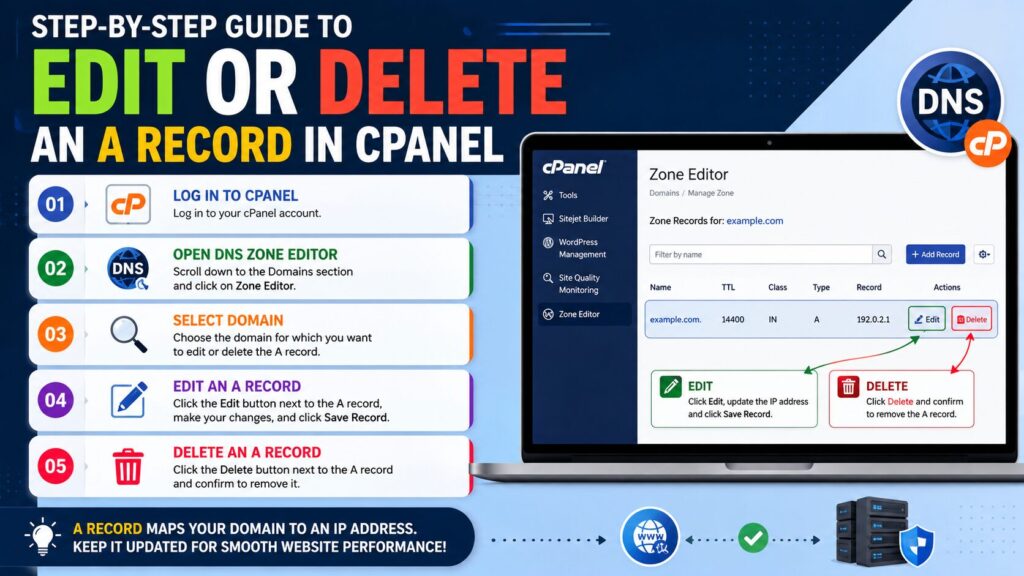
Step 1: Log in to cPanel
Open your hosting account and log in to cPanel.
Why?
The DNS Zone Editor is available inside cPanel.
You’ll See
The cPanel dashboard with various management tools.
Beginner Tip
Use the search bar and type Zone Editor to find it quickly.
Common Mistake
Logging into the wrong hosting account.
Step 2: Open DNS Zone Editor
Scroll to the Domains section.
Click Zone Editor.
Why?
This tool allows you to manage all DNS records for your domain.
You’ll See
A list of your domains.
Each domain will have a Manage button.
Beginner Tip
Select the correct domain before editing any records.
Common Mistake
Editing the DNS records of the wrong domain.
Step 3: Open DNS Records
Click Manage beside the domain.
Locate the existing A Record.
You can search using:
- Domain name
- Type = A
Why?
This makes it easier to find the correct DNS record.
You’ll See
A table containing:
- Name
- TTL
- Type
- Record
Step 4: Edit the A Record
To change the IP address:
Click Edit.
Update the IP address in the Record field.
Click Save Record.
Why?
This points your domain to the new server.
You’ll See
A success message confirming the update.
Beginner Tip
Double-check every number in the IP address.
Even one incorrect digit can break your website.
Common Mistake
Entering the wrong IP address.
Step 5: Delete the A Record (If Needed)
If the A Record is no longer required:
Click Delete beside the record.
Confirm the deletion.
Why?
Removing outdated records prevents DNS conflicts.
You’ll See
The record disappears from the DNS list.
Beginner Tip
Only delete records you are certain are unnecessary.
Common Mistake
Deleting the primary A Record accidentally.
Step 6: Wait for DNS Propagation
DNS updates aren’t always immediate.
Why?
Internet providers around the world update DNS information at different times.
What to Expect
- Some visitors see the new website immediately.
- Others may see the old version for several hours.
Typical propagation time:
- 5 minutes
- 1 hour
- Up to 48 hours
When Should You Edit or Delete an A Record?
Edit an A Record when:
- Your hosting server changes
- Your website moves to another provider
- Your IP address changes
Delete an A Record when:
- It is no longer used
- It points to an old server
- Duplicate records cause DNS issues
Best Practices
- Always create a backup before editing DNS.
- Verify the new IP address with your hosting provider.
- Edit only one DNS record at a time.
- Wait for propagation before making additional changes.
- Keep unnecessary DNS records removed.
- Record the old IP address before changing it.
- Test your website after DNS updates.
Common Problems and Solutions
| Problem | Solution |
| Website not loading | Check the IP address entered |
| DNS changes not visible | Wait up to 48 hours |
| Wrong website opens | Verify the A Record points to the correct server |
| Record missing | Restore from backup or recreate it |
| Changes won’t save | Refresh cPanel and try again |
| DNS conflict | Remove duplicate A Records |
Frequently Asked Questions
1. What happens if I edit an A Record?
Your domain starts pointing to the new IP address after DNS propagation.
2. Is it safe to delete an A Record?
Yes, but only if it is no longer required.
Deleting the main A Record may make your website inaccessible.
3. How long do DNS changes take?
Usually between a few minutes and 48 hours.
4. Can I restore a deleted A Record?
Yes.
You can recreate it manually if you know the correct IP address.
5. Will editing an A Record affect my email?
Normally no.
Email usually depends on MX Records.
6. Can I have multiple A Records?
Yes.
Some websites use multiple A Records for load balancing.
7. What is TTL?
TTL (Time To Live) tells DNS servers how long to cache a record before checking for updates.
8. Do I need to restart my hosting after changing an A Record?
No.
DNS changes happen independently of your web server.
Conclusion
Knowing how to edit or delete A Record in cPanel using the DNS Zone Editor is an essential skill for every website owner.
Whether you’re moving to a new hosting provider, updating your server’s IP address, or cleaning up old DNS records, the process is straightforward when done carefully. Always verify the IP address, back up your settings, and allow enough time for DNS propagation before expecting the changes to appear worldwide.
By following the steps in this guide, you can manage your DNS records with confidence and keep your website running smoothly.
