
How to Create a Database in cPanel (2026 Beginner’s Guide)
How to Create a Database in cPanel (2026 Beginner’s Guide)
Creating a database in cPanel is one of the first steps when building a website, installing WordPress, or setting up applications like Joomla, Drupal, or custom PHP scripts.
A database stores important information such as usernames, passwords, blog posts, products, customer details, and website settings. Without it, many websites simply cannot function.
In this beginner-friendly guide, you’ll learn exactly how to create a database in cPanel, create a database user, assign permissions, and avoid common mistakes—even if you’ve never used cPanel before.

What Is a Database in cPanel?
A database is a structured place where your website stores information.
Think of it like a digital filing cabinet.
Instead of keeping files on paper, your website stores data inside a database where it can quickly find and update information whenever someone visits your site.
For example:
- WordPress stores blog posts
- WooCommerce stores products and orders
- Contact forms store submissions
- Membership sites store user accounts
In cPanel, databases are usually created using MySQL® Database Wizard or MySQL® Databases.
Why Is Creating a Database Important?
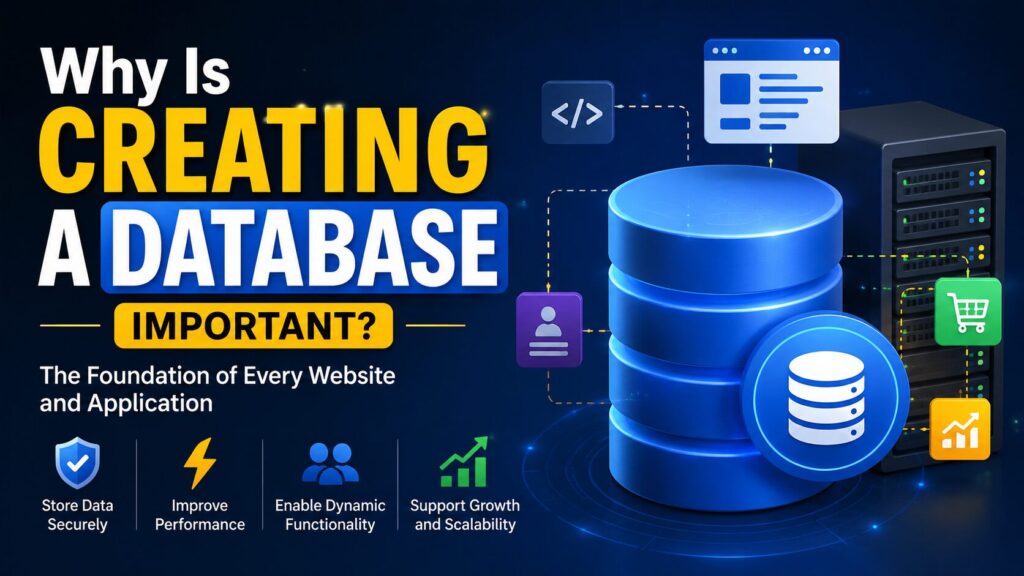
Creating a database allows your website to store and manage information efficiently.
Benefits include:
- Stores website content securely
- Required for WordPress installation
- Supports dynamic websites
- Keeps user information organized
- Makes website management easier
- Works with many CMS platforms
Common situations where you’ll need a database:
- Installing WordPress
- Installing Joomla
- Installing Drupal
- Running PHP applications
- Building an online store
- Creating a membership website
Step-by-Step Guide to Create a Database in cPanel
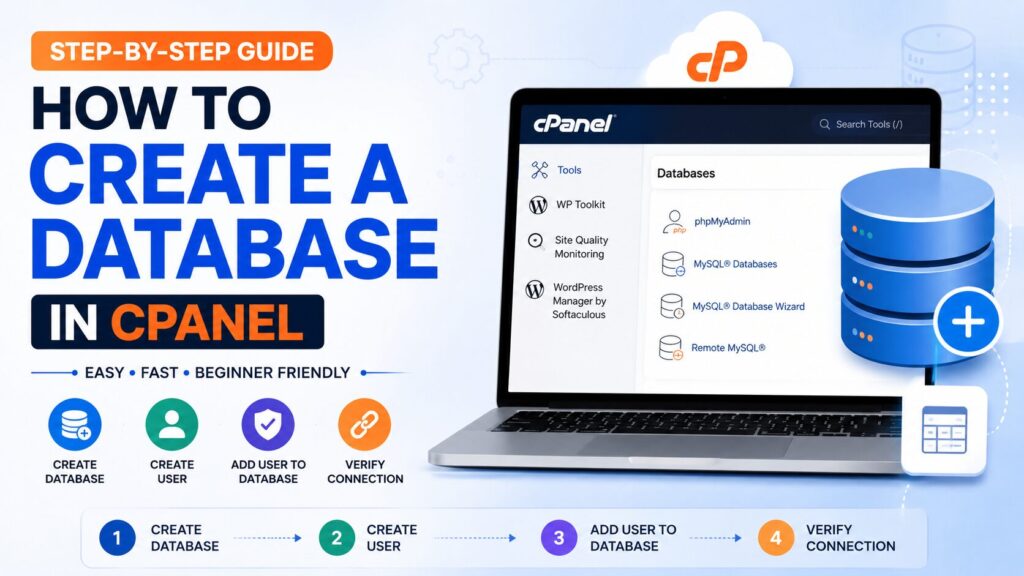
Step 1: Log in to cPanel
What to do
Open your hosting control panel and sign in using your cPanel username and password.
Why you’re doing it
You need access to your hosting account before managing databases.
What you’ll see
The cPanel dashboard with different sections such as:
- Files
- Databases
- Domains
- Security
Beginner Tip
Use HTTPS when logging into cPanel to keep your account secure.
Common Mistake
Logging into the wrong hosting account.
Step 2: Open MySQL Database Wizard
Scroll to the Databases section.
Click:
MySQL® Database Wizard
Why you’re doing it
The wizard makes database creation easier for beginners.
What you’ll see
A page asking for a new database name.
Beginner Tip
If the Database Wizard isn’t available, use MySQL® Databases instead.
Common Mistake
Opening phpMyAdmin instead of the Database Wizard.
Step 3: Create a New Database
Enter a database name.
Example:
wordpress_db
Click:
Next Step
Why you’re doing it
This creates the actual database where your website data will be stored.
What you’ll see
A confirmation that the database has been created.
Beginner Tip
Choose a simple and meaningful name.
Example:
- website_db
- shop_db
- blog_db
Common Mistake
Using confusing names that are difficult to remember.
Step 4: Create a Database User
Now you’ll be asked to create a database user.
Enter:
- Username
- Strong Password
Click:
Create User
Why you’re doing it
The database user allows your website to access the database securely.
What you’ll see
A success message confirming the new user.
Beginner Tip
Use the built-in Password Generator.
Common Mistake
Using weak passwords like:
- 123456
- password
- admin
Step 5: Assign the User to the Database
You’ll now see the Manage User Privileges page.
Select:
ALL PRIVILEGES
Click:
Make Changes
Why you’re doing it
Without permissions, your website cannot read or write data.
What you’ll see
A confirmation that the user has been added successfully.
Beginner Tip
Most WordPress installations require all privileges.
Common Mistake
Forgetting to assign privileges.
This is one of the most common reasons WordPress installation fails.
Step 6: Verify the Database
Return to:
MySQL® Databases
You should now see:
- Database name
- Database user
- Assigned privileges
Your database is now ready to use.
Database Components Explained
| Component | Purpose |
|---|---|
| Database | Stores website information |
| Database User | Connects your website to the database |
| Password | Protects database access |
| Privileges | Controls what the user can do |
| phpMyAdmin | Manages database tables and data |
Best Practices
- Use strong passwords
- Create meaningful database names
- Delete unused databases
- Remove inactive users
- Back up databases regularly
- Never share database passwords
- Limit user access when possible
- Keep cPanel updated
- Store credentials safely
- Use SSL when accessing cPanel
Common Problems and Solutions
| Problem | Solution |
| Cannot create database | Check your hosting database limit |
| Database already exists | Choose another name |
| Access denied | Verify username and password |
| Website cannot connect | Check database credentials |
| User not assigned | Add the user to the database |
| Missing privileges | Enable ALL PRIVILEGES |
| Forgot password | Reset the database user password |
| Changes not saving | Refresh cPanel and try again |
Checklist Before Installing WordPress
- Database created
- Database user created
- Strong password saved
- User assigned to database
- ALL PRIVILEGES enabled
- Database name copied
- Username copied
- Password stored safely
Frequently Asked Questions (FAQs)
1. Is creating a database in cPanel free?
Yes. If your hosting plan includes databases, you can create them without any additional cost.
2. Do I need a database for WordPress?
Yes. WordPress requires a MySQL database to store all your website content and settings.
3. Can I create multiple databases?
Yes, provided your hosting plan allows multiple databases.
4. What happens if I delete a database?
All data stored inside it will be permanently removed unless you have a backup.
5. Can I rename a database?
Most hosting providers do not allow database renaming directly. You usually need to create a new database and migrate the data.
6. What is phpMyAdmin?
phpMyAdmin is a web-based tool inside cPanel used to manage MySQL databases, tables, and records.
7. Should every website have its own database?
Yes. Using separate databases improves organization and makes management easier.
8. Can I change the database password later?
Yes. You can update the database user’s password anytime from the MySQL Databases section.
Conclusion
Learning how to create a database in cPanel is an essential skill for anyone managing a website. Whether you’re installing WordPress, launching an online store, or building a custom application, a properly configured database is the foundation of your site’s functionality.
By following the steps in this guide, you can confidently create a database, add a secure user, assign the correct permissions, and prepare your hosting account for your next project. Always use strong passwords, keep backups of your databases, and review user permissions regularly to maintain security.
