
How to Edit or Delete MX Record in cPanel (2026 Guide)
How to Edit or Delete MX Record in cPanel Using DNS Zone Editor (2026 Guide)
Managing your website’s DNS records might sound complicated, but editing or deleting an MX Record in cPanel is easier than most beginners expect.
If you’re changing email providers, fixing email delivery issues, or removing an old mail server, you’ll likely need to update your MX Record using the DNS Zone Editor.
In this beginner-friendly guide, you’ll learn what an MX Record is, when to edit or delete it, and how to safely make changes in cPanel without affecting your website.

What Is an MX Record?
An MX (Mail Exchange) Record is a DNS record that tells the internet where to deliver emails for your domain.
For example:
If someone sends an email to:
The MX Record tells the sender’s mail server which mail server should receive that email.
Real-World Example
Imagine your website uses one company for web hosting but another company like Google Workspace or Microsoft 365 for email.
Your MX Record points your domain to the correct email service.
Without the correct MX Record:
- Emails may not arrive.
- Emails could bounce back.
- Your business communication may stop working.
Why Is It Important?
Editing or deleting an MX Record is useful when:
- Switching to a new email hosting provider
- Fixing email delivery problems
- Removing outdated mail servers
- Correcting an incorrect priority
- Cleaning up unused DNS records
Benefits
- Better email reliability
- Faster email delivery
- Reduced email errors
- Proper routing to your mail server
- Cleaner DNS configuration
Important: Deleting the wrong MX Record can stop all email delivery for your domain. Always double-check before making changes.
Requirements Before You Start
Before editing or deleting an MX Record, make sure you have:
- ✅ A web hosting account
- ✅ Access to cPanel
- ✅ Permission to manage DNS records
- ✅ A modern web browser
- ✅ A backup or screenshot of your current DNS settings
- ✅ The new MX Record information (if replacing an existing one)
Step-by-Step Guide to Edit or Delete MX Record in cPanel
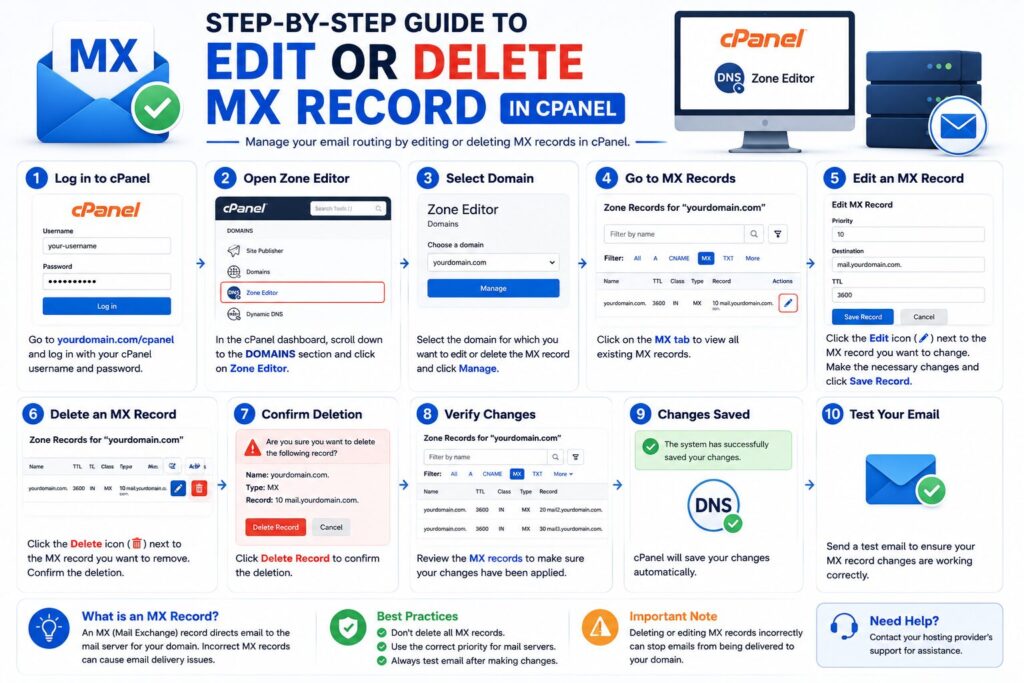
Step 1: Log in to cPanel
What to do
Sign in to your hosting account and open cPanel.
Why?
The DNS Zone Editor is available inside cPanel.
What you’ll see
The cPanel dashboard with various management tools.
Beginner Tip
Use the search box at the top of cPanel to quickly find Zone Editor.
Common Mistake
Logging into the wrong hosting account.
Step 2: Open the Zone Editor
What to do
Navigate to:
Domains → Zone Editor
Click Manage beside the domain you want to edit.
Why?
This opens all DNS records for your selected domain.
What you’ll see
A list containing:
- A Records
- AAAA Records
- CNAME Records
- MX Records
- TXT Records
Beginner Tip
Make sure you’re editing the correct domain if your account hosts multiple websites.
Step 3: Locate the MX Record
What to do
Find the record where the Type is:
MX
You can also use the search or filter option if available.
Why?
This ensures you’re modifying the correct DNS record.
What you’ll see
Columns such as:
| Field | Description |
|---|---|
| Name | Domain name |
| Priority | Mail priority |
| Destination | Mail server |
| TTL | Cache duration |
Beginner Tip
Take a screenshot before making changes.
Common Mistake
Confusing an MX Record with a TXT Record.
Step 4: Edit the MX Record
What to do
Click Edit beside the MX Record.
Update:
- Priority
- Destination mail server
- Other available fields
Click Save Record.
Why?
This updates your email routing to the correct mail server.
What you’ll see
A confirmation message indicating the record has been updated.
Beginner Tip
Copy the MX values exactly as provided by your email provider.
Common Mistake
Typing the mail server incorrectly.
Example:
Correct
mail.example.comIncorrect
mail.exampel.comStep 5: Delete an MX Record (If Needed)
What to do
If the record is no longer required:
Click Delete.
Confirm the deletion.
Why?
This removes outdated or incorrect email routing information.
What you’ll see
The MX Record disappears from the DNS list.
Beginner Tip
Only delete an MX Record if you’re certain it is no longer needed.
Common Mistake
Deleting your only active MX Record.
This can stop incoming emails completely.
Step 6: Wait for DNS Propagation
What to do
Allow the changes to update across the internet.
Why?
DNS changes are not always instant.
What you’ll see
Email services gradually begin using the new MX Record.
Beginner Tip
Most changes appear within a few hours but may take up to 24–48 hours.
Understanding MX Record Priority
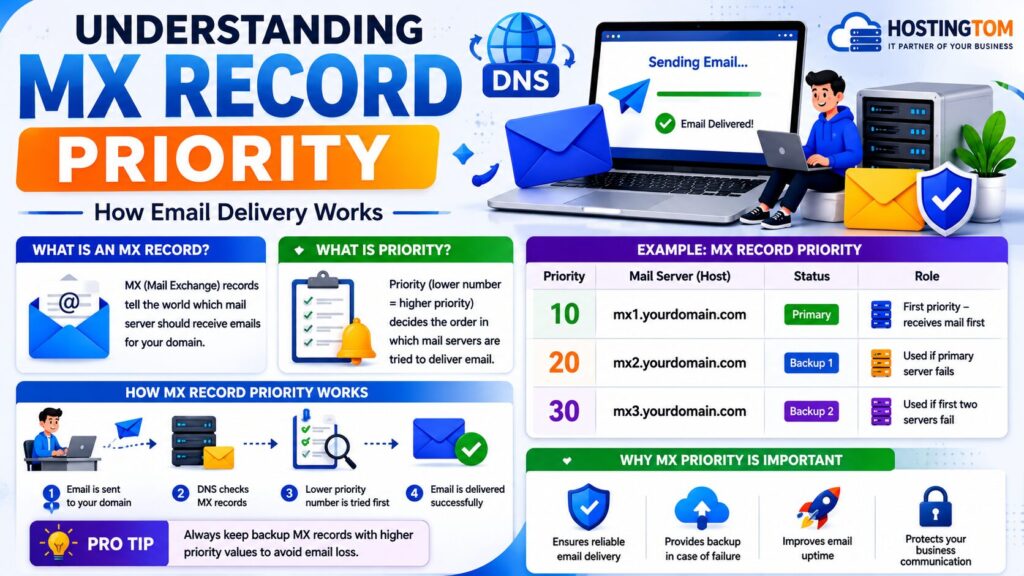
If your domain has multiple MX Records, each one has a priority number.
| Priority | Meaning |
|---|---|
| 0 | Highest priority |
| 5 | Preferred after 0 |
| 10 | Backup server |
| 20 | Lower priority |
The lowest number is tried first.
Best Practices
- Always back up existing DNS settings.
- Verify MX values from your email provider.
- Edit one record at a time.
- Wait for DNS propagation.
- Test email after making changes.
- Remove unused MX Records.
- Keep DNS records organized.
- Document all changes.
Common Problems and Solutions
| Problem | Solution |
|---|---|
| Emails stop working | Check if the MX Record was deleted accidentally. |
| Wrong mail server | Verify the destination with your email provider. |
| DNS changes not visible | Wait up to 48 hours for propagation. |
| Incorrect priority | Use the recommended priority values. |
| Can’t edit records | Ensure your domain uses your hosting provider’s DNS servers. |
| Record missing | Confirm you’re editing the correct domain zone. |
Frequently Asked Questions
1. Is it safe to edit an MX Record?
Yes, as long as you use the correct values.
2. Can I delete an MX Record?
Yes, but only if it’s no longer needed.
3. What happens if I delete all MX Records?
Your domain will not receive emails.
4. How long do MX Record changes take?
Usually a few minutes to several hours, but up to 48 hours in some cases.
5. Will editing an MX Record affect my website?
No.
It only affects email delivery.
6. Can I have multiple MX Records?
Yes.
Many businesses use multiple mail servers for redundancy.
7. Why are my emails still going to the old server?
DNS propagation may still be in progress.
8. Should I back up DNS records first?
Absolutely.
Taking a screenshot or exporting your DNS settings makes recovery much easier.
Conclusion
Knowing how to edit or delete MX Record in cPanel using the DNS Zone Editor is an essential skill for anyone managing a website or business email.
Whether you’re changing email providers, correcting mail routing, or removing outdated records, always verify the information before saving your changes. A simple mistake can interrupt email delivery, while the correct configuration ensures your messages reach the right destination.
Take a backup of your current DNS settings, make changes carefully, and allow time for DNS propagation before testing your email.
