
How to Create a New File or Folder in cPanel File Manager
Introduction
If you’re building or managing a website, you’ll often need to create new files or folders. Whether you’re uploading a new webpage, adding CSS files, storing images, or organizing your website, cPanel File Manager makes the process simple.
Learning how to create a new file or folder in cPanel File Manager is one of the first skills every website owner should know. You don’t need any coding knowledge or special software—everything can be done directly from your web browser.
In this beginner-friendly guide, you’ll learn what files and folders are, why they matter, and exactly how to create them step by step.

What Is Creating a New File or Folder in cPanel File Manager?
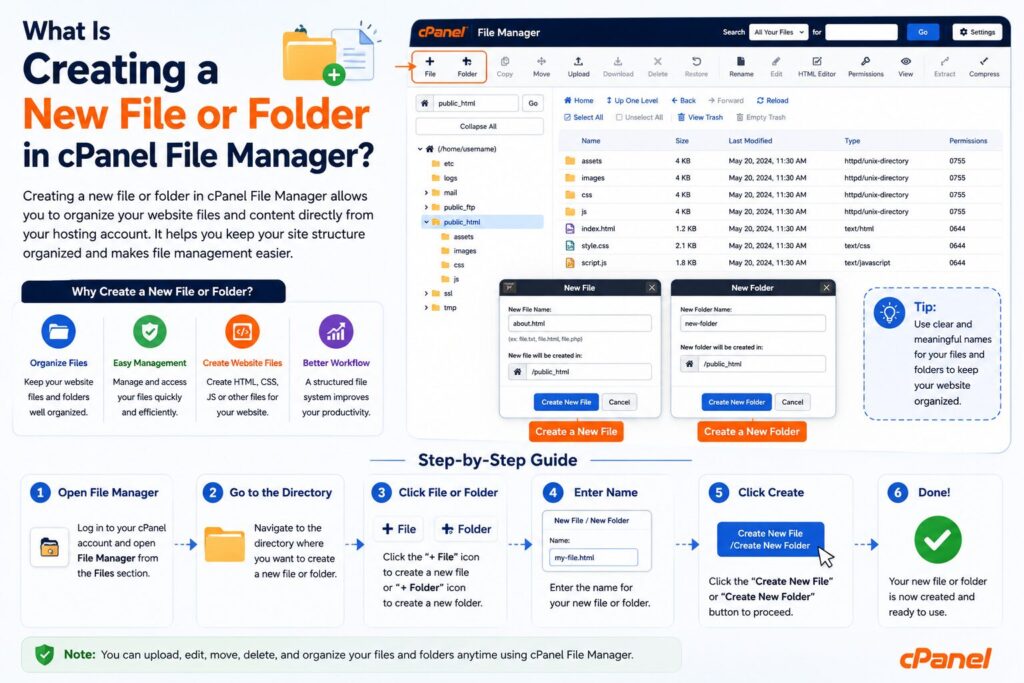
Creating a new file or folder means adding a blank file or a new directory inside your website’s hosting account.
Think of your computer:
- A folder stores related files.
- A file contains actual information such as HTML pages, CSS, JavaScript, or text.
Your hosting account works the same way.
Example
Imagine you’re creating a new “About Us” page.
You’ll need:
- A folder (optional) named about
- A file named index.html or about.html
Creating these items in File Manager lets visitors access your webpage online.
Why Is It Important?
Creating files and folders helps keep your website organized and functional.
Benefits include:
- Organize website content
- Upload custom HTML pages
- Store images and documents
- Separate project files
- Create folders for backups
- Improve website management
- Make editing easier
- Keep WordPress files organized
Step-by-Step Guide to Create a New File or Folder in cPanel File Manager
Step 1: Log in to cPanel
Open your hosting provider’s cPanel login page.
Enter:
- Username
- Password
Click Log In.
Why?
You need access to your hosting dashboard before managing files.
What You’ll See
The main cPanel dashboard with different tools.
Beginner Tip
Bookmark your cPanel login page for quicker access later.
Common Mistake
Entering incorrect login credentials.
Step 2: Open File Manager
Scroll to the Files section.
Click File Manager.
Why?
File Manager is where all website files are stored and managed.
What You’ll See
A folder tree on the left and your files on the right.
Beginner Tip
Most websites use the public_html folder.
Step 3: Open the Correct Directory
Navigate to the location where you want your new file or folder.
Usually:
public_htmlor
public_html/project-nameWhy?
Anything inside public_html can usually be accessed from your website.
Beginner Tip
Double-check you’re in the correct folder before creating new items.
Common Mistake
Creating files inside the wrong directory.
Step 4: Create a New Folder
Click the + Folder button at the top.
A small window will appear.
Enter:
imagesor
cssor any folder name you need.
Click Create New Folder.
Why?
Folders help organize related files.
What You’ll See
The new folder appears immediately in File Manager.
Beginner Tip
Use lowercase names without spaces.
Example:
blog-imagesinstead of
Blog ImagesStep 5: Create a New File
Click the + File button.
Enter the file name.
Examples:
index.htmlstyle.cssscript.jsChoose the correct location.
Click Create New File.
Why?
Files hold your webpage content or code.
What You’ll See
The file will appear inside the selected folder.
Beginner Tip
Always include the correct file extension.
Examples:
- .html
- .php
- .css
- .js
- .txt
Common Mistake
Creating a file without an extension.
Incorrect:
indexCorrect:
index.htmlStep 6: Edit the File
Right-click the new file.
Select:
Edit
or
Code Editor
Add your content.
Click Save Changes.
Why?
A blank file won’t do anything until content is added.
What You’ll See
The built-in text editor opens.
Beginner Tip
Start with simple HTML if you’re creating a webpage.
Example:
<!DOCTYPE html>
<html>
<head>
<title>My First Page</title>
</head>
<body>
<h1>Hello World!</h1>
</body>
</html>
Common File Types in cPanel
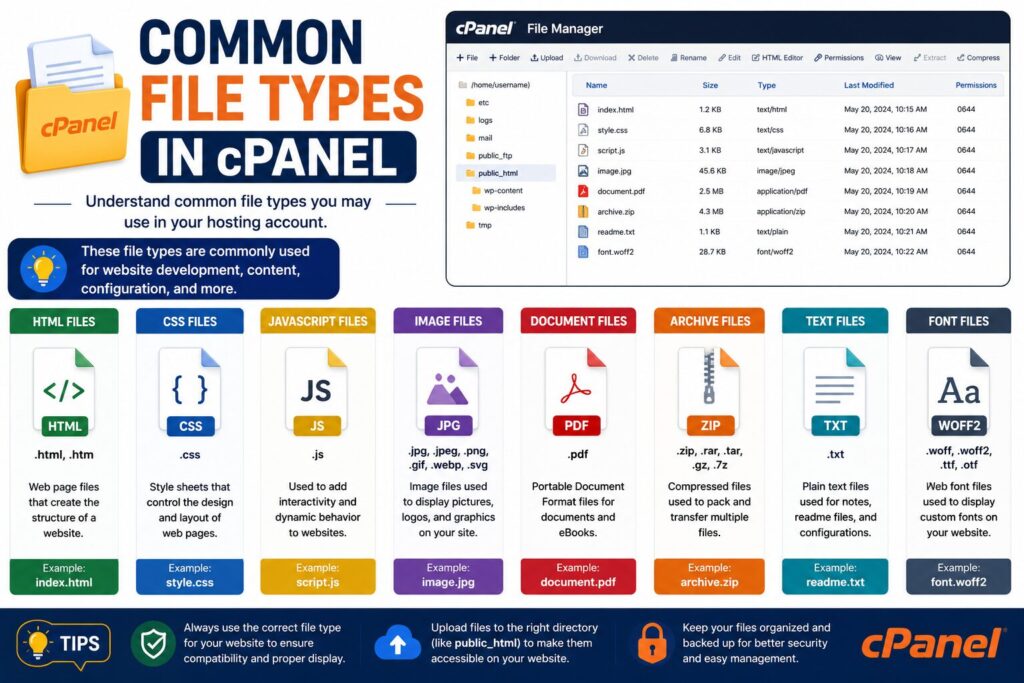
| File Type | Purpose |
|---|---|
| HTML | Web pages |
| PHP | Dynamic website pages |
| CSS | Website styling |
| JS | JavaScript functionality |
| TXT | Notes or verification |
| XML | Sitemaps |
| JSON | Configuration data |
| ZIP | Compressed files |
Common Folder Types
| Folder | Purpose |
|---|---|
| public_html | Main website files |
| images | Pictures |
| css | Stylesheets |
| js | JavaScript files |
| uploads | Uploaded content |
| backup | Website backups |
Best Practices
- Keep files organized.
- Use descriptive folder names.
- Avoid spaces in file names.
- Use lowercase letters.
- Delete unused files.
- Create backups before major changes.
- Check permissions if files don’t work.
- Keep sensitive files outside
public_html. - Review your folder structure regularly.
Common Problems and Solutions
| Problem | Solution |
|---|---|
| Can’t create file | Check write permissions. |
| Folder button missing | Ensure you have the required cPanel permissions. |
| File appears in wrong location | Verify the selected directory before creating it. |
| Invalid file name | Remove special characters and use a proper extension. |
| Storage full | Delete unused files or upgrade your hosting plan. |
| Changes not visible | Clear your browser cache and refresh the page. |
Frequently Asked Questions (FAQs)
1. Can I create files without FTP?
Yes. cPanel File Manager lets you create and edit files directly in your browser.
2. Where should I create website files?
Most website files belong inside the public_html directory.
3. Can I rename files later?
Yes. Right-click the file and choose Rename.
4. Can I delete a file?
Yes. Select the file and click Delete. Be careful, as deleting important files can break your website.
5. What file extension should I use?
It depends on the file type:
- HTML →
.html - PHP →
.php - CSS →
.css - JavaScript →
.js
6. Can I edit files after creating them?
Yes. Use the built-in Edit or Code Editor option.
7. Why can’t I create a new folder?
You may not have permission, or your hosting account may have reached its storage limit.
8. Is File Manager safe?
Yes, when accessed through your secure cPanel account. Always use a strong password and avoid editing critical files unless you know what you’re’re changing.
Conclusion
Knowing how to create a new file or folder in cPanel File Manager is an essential skill for anyone managing a website. Whether you’re building a new page, organizing images, or creating folders for different projects, cPanel makes the process quick and easy.
Take your time, work in the correct directory, and keep your files organized. Before making major changes, create a backup so you can restore your website if needed.
With a little practice, managing your website files through cPanel will become second nature.
