
How to Check Disk Usage and Bandwidth Usage in cPanel
Introduction
Disk Usage in cPanel helps you monitor how much storage space your website, email accounts, databases, and files are using. Checking disk usage in cPanel along with bandwidth usage allows you to identify storage issues, manage server resources efficiently, and ensure your website continues to perform smoothly. In this 2026 beginner’s guide, you’ll learn how to check both disk usage and bandwidth usage step by step.
- What disk usage and bandwidth mean
- Why they matter
- How to check directory disk usage
- How to monitor bandwidth usage
- Common issues and solutions
- Best practices for managing hosting resources

What Is Disk Usage and Bandwidth Usage?
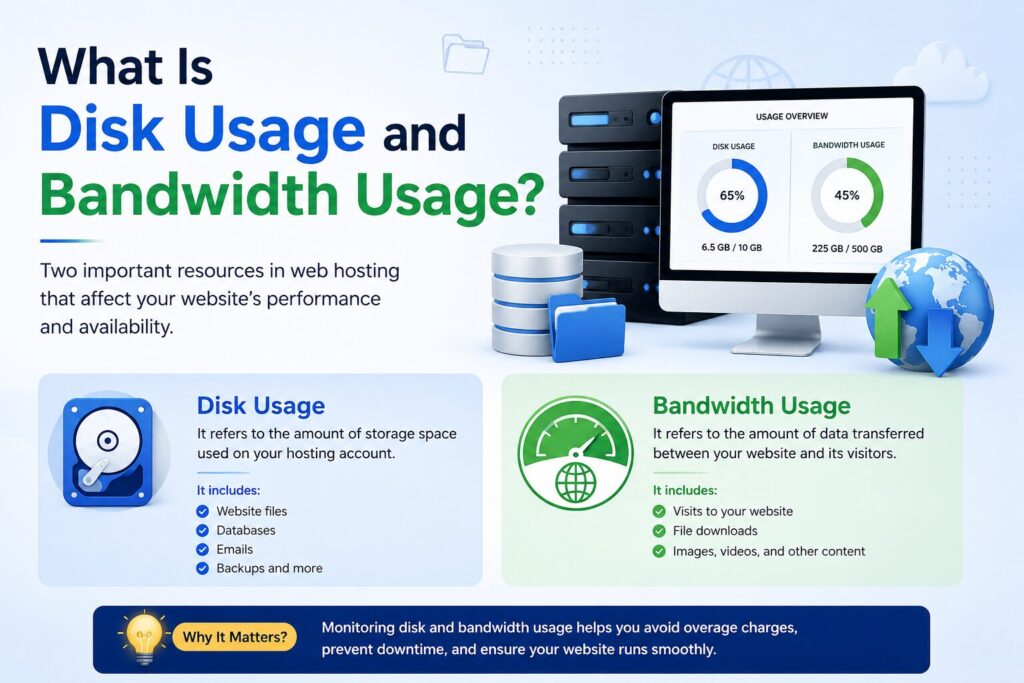
What Is Disk Usage?
Disk usage refers to the amount of storage space your website is using on your hosting account.
Think of your hosting account like the hard drive on your computer.
Everything stored on your website uses disk space, including:
- Website files
- Images
- Videos
- Email accounts
- Databases
- Backups
- Logs
- WordPress themes and plugins
Real-world Example
Imagine renting a storage room.
- The room size = Hosting storage
- Boxes = Website files
- More boxes = More storage used
Once the room is full, you cannot store anything new until you remove some items or upgrade.
What Is Bandwidth Usage?
Bandwidth measures how much data is transferred between your website and visitors.
Every time someone:
- Opens a webpage
- Downloads a file
- Watches a video
- Loads an image
your hosting uses bandwidth.
Simple Example
Suppose:
- One webpage = 3 MB
- 1,000 visitors = 3 GB transferred
More visitors usually mean higher bandwidth usage.
Why Is It Important?
Monitoring disk usage and bandwidth helps prevent unexpected problems.
Benefits include:
- Prevent website downtime
- Avoid running out of storage
- Keep email accounts working
- Identify large files
- Improve website performance
- Plan hosting upgrades
- Detect unusual traffic spikes
- Monitor website growth
If your hosting account reaches its limits, you may experience:
- Upload failures
- Email delivery problems
- Slow website loading
- Database errors
- Website suspension (depending on hosting provider)
Checking your usage regularly helps you stay ahead of these issues.
Understanding Disk Usage vs Bandwidth
| Feature | Disk Usage | Bandwidth Usage |
|---|---|---|
| Measures | Storage used | Data transferred |
| Changes when | Uploading files | Visitors access website |
| Limited by | Hosting storage | Monthly transfer quota |
| Includes | Images, emails, databases | Images, downloads, pages |
| Can be reduced? | Yes | No (depends on traffic) |
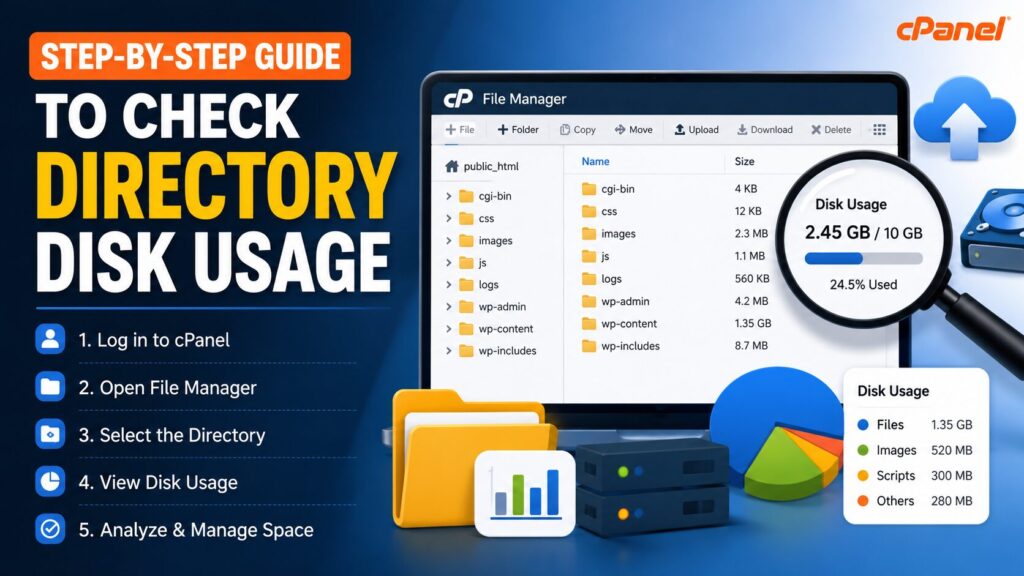
Step-by-Step Guide to Check Directory Disk Usage
Beginner Tip
Bookmark your cPanel login page for future use.
Common Mistake
Using incorrect login credentials.
Step 2: Open the Disk Usage Tool
Scroll to the Files section.
Click Disk Usage.
Why?
This tool shows exactly how much storage every folder is using.
What You’ll See
A storage report with folders such as:
- public_html
- logs
- tmp
- backups
You’ll also see:
- Total disk usage
- Free space
- Folder sizes
Beginner Tip
The public_html folder usually contains your website files.
Step 3: Review Directory Sizes
Scroll through the report.
You’ll notice different folders and their sizes.
Common directories include:
| Directory | Purpose |
|---|---|
| public_html | Website files |
| Email storage | |
| tmp | Temporary files |
| logs | Website logs |
| backups | Backup archives |
| etc | Email settings |
Why?
This helps identify which folders consume the most storage.
Beginner Tip
Large folders often indicate:
- Old backups
- Unused images
- Log files
- Cache files
Step 4: Identify Large Files
If one directory is unusually large:
Open File Manager.
Browse that folder.
Look for:
- ZIP backups
- Large videos
- Old website copies
- Error logs
- Cache folders
Why?
Removing unnecessary files frees valuable storage.
Common Mistake
Never delete files unless you’re sure they’re no longer needed.
Step 5: Clean Up Storage
Delete only unnecessary items such as:
- Old backups
- Temporary files
- Cache files
- Duplicate uploads
- Unused themes
- Unused plugins
Empty the Trash afterward.
Beginner Tip
Always create a backup before deleting important files.
Step-by-Step Guide to Check Bandwidth Usage
Step 1: Return to cPanel Home
Go back to the main cPanel dashboard.
Step 2: Open Bandwidth
Locate the Metrics section.
Click Bandwidth.
Why?
This tool shows how much data your website has transferred.
Step 3: View Usage Statistics
You’ll see:
- Current month usage
- Previous months
- Daily statistics
- Weekly statistics
- Monthly totals
The report may also include:
- HTTP traffic
- FTP traffic
- Email traffic
Step 4: Analyze Traffic
If bandwidth suddenly increases, investigate:
- Viral content
- Increased visitors
- File downloads
- Image-heavy pages
- Bots
Beginner Tip
A sudden spike isn’t always bad.
It could simply mean your website is becoming more popular.
Step 5: Monitor Usage Regularly
Check bandwidth every week.
This helps you:
- Track website growth
- Detect unusual traffic
- Plan hosting upgrades
Understanding the Disk Usage Report
The Disk Usage tool usually displays:
| Item | Description |
|---|---|
| Home Directory | Entire hosting account |
| public_html | Website files |
| MySQL Databases | Database storage |
| Email Accounts | Stored emails |
| Logs | Server logs |
| Backups | Backup files |
Understanding the Bandwidth Report
The Bandwidth section may show:
| Traffic Type | Description |
|---|---|
| HTTP | Website visitors |
| HTTPS | Secure website traffic |
| FTP | File uploads/downloads |
| IMAP | Email access |
| POP3 | Email downloads |
| SMTP | Outgoing email |
Best Practices
Follow these tips to keep your hosting account healthy.
- Check disk usage every week.
- Monitor bandwidth monthly.
- Delete unnecessary backups.
- Compress large images.
- Remove unused plugins.
- Remove unused themes.
- Empty cache regularly.
- Keep WordPress updated.
- Use image optimization.
- Store backups off-server.
- Monitor email storage.
- Upgrade hosting before reaching limits.
Important: Never keep multiple old backups inside your hosting account for long periods. Download them and store them safely on your computer or cloud storage.
Common Problems and Solutions
| Problem | Possible Cause | Solution |
|---|---|---|
| Disk space full | Too many files | Delete unused files |
| High email storage | Large inbox | Remove old emails |
| Backup folder huge | Multiple backups | Download and delete old backups |
| High bandwidth | Increased traffic | Upgrade hosting if needed |
| Slow website | Large images | Optimize images |
| Cannot upload files | Storage limit reached | Free disk space |
| Website errors | Full disk | Clean storage immediately |
| Unexpected bandwidth spike | Bots or traffic | Check website analytics |
Beginner Checklist
Before finishing, make sure you’ve completed these tasks.
- Logged into cPanel
- Opened Disk Usage
- Reviewed folder sizes
- Identified large directories
- Removed unnecessary files
- Checked Bandwidth
- Reviewed monthly usage
- Planned regular monitoring
Common Mistakes to Avoid
Many beginners accidentally create hosting problems.
Avoid these mistakes:
- Ignoring storage warnings
- Keeping years of backups
- Uploading uncompressed images
- Installing unnecessary plugins
- Forgetting email storage
- Never checking bandwidth
- Deleting important system files
- Ignoring large log files
Frequently Asked Questions (FAQs)
1. What is disk usage in cPanel?
Disk usage shows how much storage your hosting account is currently using.
2. What is bandwidth usage?
Bandwidth measures the amount of data transferred between your website and visitors.
3. How often should I check disk usage?
At least once every week, especially if your website changes frequently.
4. Can high bandwidth slow my website?
Not directly, but reaching your hosting limits may affect website performance depending on your hosting plan.
5. What folder usually uses the most storage?
For most websites, the public_html, mail, and backup folders use the most space.
6. Can I delete old backups?
Yes, after downloading them to a safe location.
7. Does deleting emails free storage?
Yes.
Large email accounts often consume significant disk space.
8. What happens if disk space becomes full?
You may not be able to:
- Upload files
- Receive emails
- Create backups
- Update WordPress
9. Does every hosting plan have bandwidth limits?
Some hosting providers offer unmetered bandwidth, while others have monthly limits. Always check your hosting plan details.
10. Should I monitor usage regularly?
Yes. Regular monitoring helps prevent unexpected issues and ensures your website continues running smoothly.
Conclusion
Learning how to check disk usage of directory and bandwidth usage is one of the simplest yet most valuable website management skills for beginners. By regularly reviewing your storage and bandwidth in cPanel, you can spot potential problems early, keep your website performing well, and avoid interruptions caused by exceeding hosting limits.
Make it a habit to check your resource usage every week, remove unnecessary files, optimize images, and store backups outside your hosting account. These small maintenance tasks can significantly improve your website’s reliability and prepare you for future growth.
Whether you manage a personal blog, a WordPress site, or a business website, keeping an eye on disk usage and bandwidth will help you maintain a healthy hosting environment and deliver a better experience to your visitors.
