
How to Reset the PHP Version to the Default Version Using cPanel (2026 Guide)
How to Reset the PHP Version to the Default Version Using cPanel

Changing the PHP version can help improve website performance or compatibility. However, there may be times when you need to switch back to your hosting provider’s default PHP version.
In this beginner-friendly guide, you’ll learn how to reset the PHP version to the default version using cPanel, why you might need to do it, and how to avoid common mistakes during the process.
Whether you run a WordPress website, business website, or personal blog, this guide will walk you through everything step by step.
What Is Resetting the PHP Version to the Default Version?
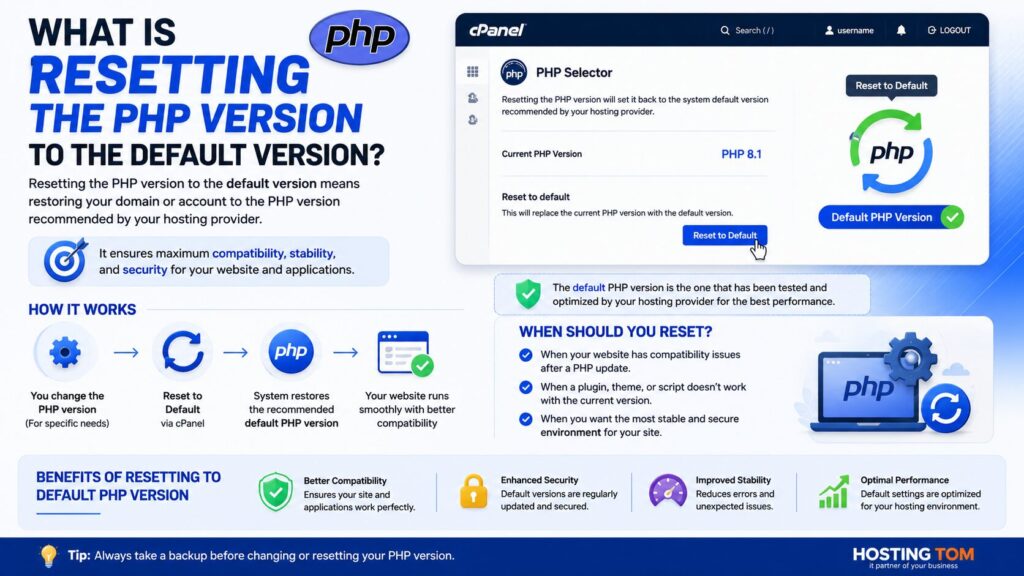
Every hosting account comes with a default PHP version selected by your hosting provider.
If you’ve previously changed your website to another PHP version, resetting it means removing your custom selection and allowing the hosting server to use its default version again.
Simple Example
Imagine your phone automatically receives the recommended software version from the manufacturer.
If you manually install another version and later decide to return to the recommended one, that’s similar to resetting your PHP version to the default.
Why Is It Important?
Resetting PHP to the default version can help when:
- Your website stops working after changing PHP.
- A plugin or theme is incompatible with the selected PHP version.
- Your hosting company recommends using the default version.
- You want better stability and support.
- You’re troubleshooting website errors.
- You’re preparing to migrate your website.
Benefits
- Better compatibility
- Stable website performance
- Easier troubleshooting
- Recommended server settings
- Reduced configuration issues
Requirements Before You Start
Before making any changes, ensure you have:
- ✅ Active hosting account
- ✅ Access to cPanel
- ✅ Website backup
- ✅ Modern web browser
- ✅ Stable internet connection
- ✅ A few minutes to complete the process
Important: Always create a full website backup before changing PHP settings.
Step-by-Step Guide to Reset the PHP Version to the Default Version Using cPanel
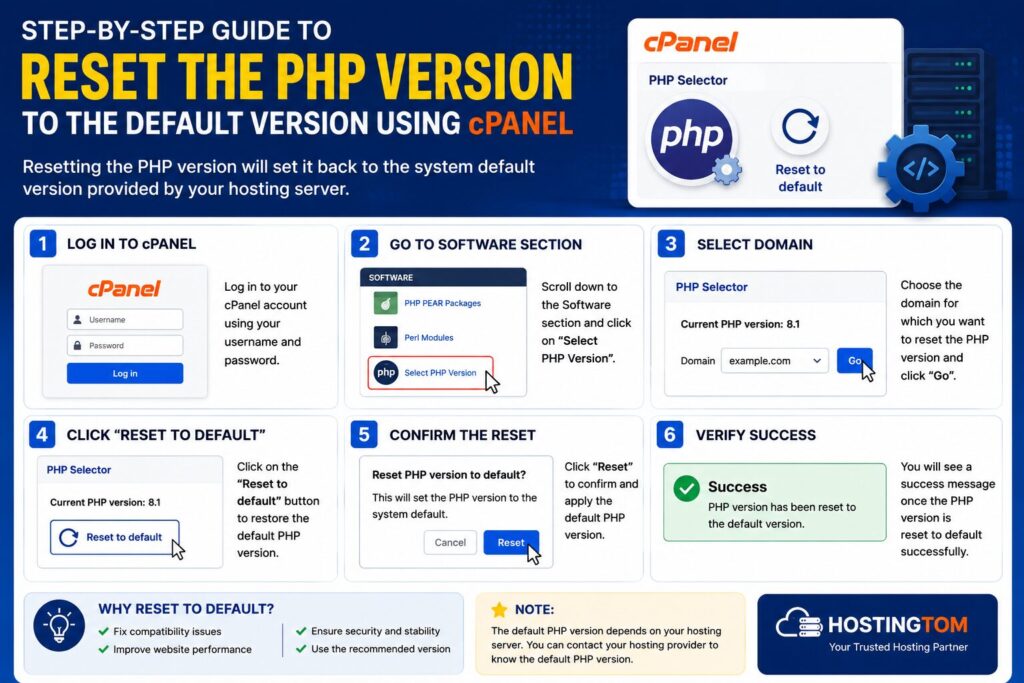
Step 1: Log in to cPanel
What to do
Log in to your hosting account and open cPanel.
Why?
This is where PHP settings are managed.
What you’ll see
The cPanel dashboard with different tools.
Beginner Tip
Use your hosting provider’s control panel if you’re unsure how to access cPanel.
Common Mistake
Trying to log in with incorrect credentials.
Step 2: Open the Select PHP Version Tool
What to do
Scroll to the Software section.
Click:
Select PHP Version
or
PHP Selector
(Some hosting providers use different names.)
Why?
This tool lets you manage PHP versions.
What you’ll see
A page showing the current PHP version.
Beginner Tip
If you don’t see this option, your hosting provider may manage PHP differently.
Common Mistake
Opening MultiPHP Manager instead of PHP Selector if your host uses CloudLinux.
Step 3: Choose the Domain
If multiple domains are hosted in your account:
- Select the correct domain.
- Confirm you’re editing the right website.
Why?
Each website may have its own PHP version.
Beginner Tip
Double-check the domain name before making changes.
Step 4: Reset to the Default PHP Version
Look for one of these options:
- Use Default
- Native
- System Default
- Inherit
- Reset to Default
Select the option available on your hosting account.
Why?
This removes the custom PHP version and restores the hosting provider’s default PHP version.
What You’ll See
A confirmation message indicating the PHP version has been updated.
Beginner Tip
The exact button name depends on your hosting provider.
Common Mistake
Choosing another PHP version instead of the default option.
Step 5: Save the Changes
Click:
- Save
- Apply
- Set as Current
depending on your hosting provider.
Why?
Your changes won’t take effect until saved.
What You’ll See
A success notification.
Beginner Tip
Wait a few seconds before visiting your website.
Step 6: Check Your Website
Open your website in a new browser tab.
Visit several pages to ensure everything loads correctly.
If you use WordPress:
- Log in to wp-admin.
- Check plugins.
- Check themes.
- Verify images load properly.
What Happens After Resetting PHP?
Your website will:
- Use the server’s recommended PHP version.
- Ignore previously selected custom PHP versions.
- Continue working normally if everything is compatible.
Some websites may require clearing cache before changes appear.
Best Practices
- Always back up your website first.
- Reset PHP during low-traffic hours.
- Test your website after making changes.
- Keep WordPress updated.
- Update themes and plugins regularly.
- Use supported PHP versions whenever possible.
- Record previous settings before making changes.
Common Problems and Solutions
| Problem | Solution |
|---|---|
| PHP Selector missing | Contact your hosting provider. |
| Website shows errors | Clear cache and check plugins. |
| White screen | Enable error logs and restore backup if needed. |
| Changes don’t apply | Wait a few minutes or clear browser cache. |
| Wrong domain changed | Reopen PHP Selector and select the correct domain. |
| Plugin incompatibility | Update or replace the plugin. |
Checklist Before Resetting PHP
- ✅ Website backup created
- ✅ cPanel login ready
- ✅ Correct domain selected
- ✅ Know your previous PHP version
- ✅ Website tested afterward
Frequently Asked Questions (FAQs)
1. Is resetting PHP safe?
Yes. It is safe if you create a backup before making changes.
2. Will resetting PHP delete my website?
No.
Changing the PHP version does not delete website files or databases.
3. Why would I reset PHP to the default version?
Usually to fix compatibility issues or follow your hosting provider’s recommended configuration.
4. Can I switch back later?
Yes.
You can choose another supported PHP version whenever needed.
5. Will WordPress still work?
Yes, provided the default PHP version is supported by your WordPress version, themes, and plugins.
6. How do I know the default PHP version?
The PHP Selector usually displays it, or your hosting provider’s documentation will mention it.
7. Do all hosting companies have the same default PHP version?
No.
The default version depends on your hosting provider.
8. Should I always use the default PHP version?
In most cases, yes.
Hosting providers usually select a stable and well-supported version.
Conclusion
Knowing how to reset the PHP version to the default version using cPanel is a useful skill for every website owner. If your website experiences compatibility issues or you simply want to return to your hosting provider’s recommended settings, resetting the PHP version is quick and straightforward.
Before making any changes, always create a backup, verify you’re editing the correct domain, and test your website after saving the new settings. Following these best practices helps keep your website stable, secure, and running smoothly.
