
How to Delete a Database in cPanel (2026 Beginner’s Guide)
How to Delete a Database in cPanel (2026 Beginner’s Guide)
Deleting an unused database in cPanel is a simple task, but it should always be done carefully. Once a database is deleted, all the data stored inside it is permanently removed unless you have a backup.
Whether you’re removing an old WordPress installation, cleaning up your hosting account, or deleting an unused application, knowing how to delete a database in cPanel can help keep your hosting account organized.
In this guide, you’ll learn exactly how to delete a database in cPanel, what happens after deletion, important precautions, and common mistakes to avoid.

What Is Deleting a Database in cPanel?
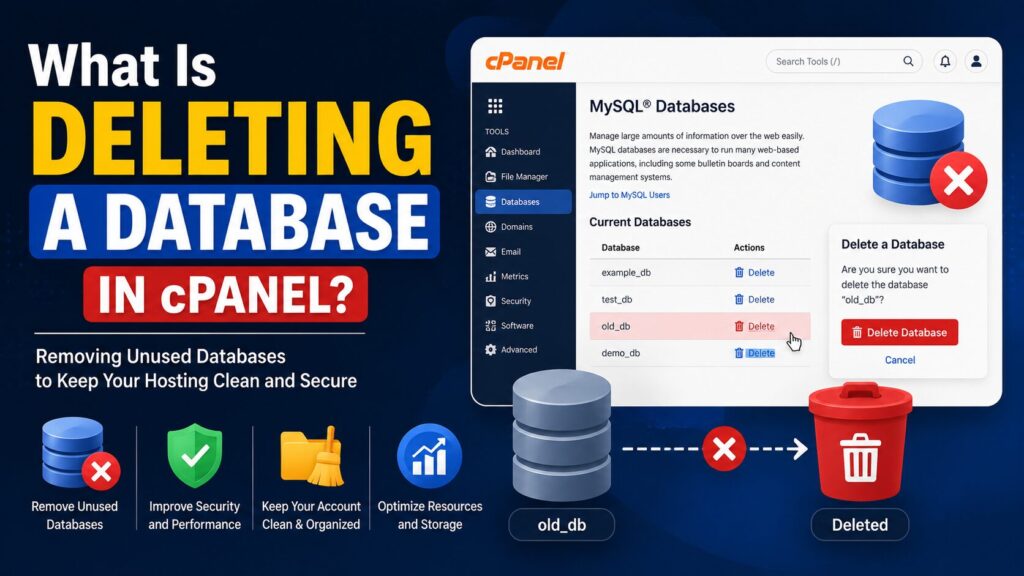
A database stores important information for your website, such as:
- Website posts
- User accounts
- Settings
- Comments
- Product information
- Orders
Deleting a database removes all of this information from your hosting account.
Real-World Example
Imagine you created a test WordPress website while learning. After finishing your tests, you no longer need its database. Instead of leaving unused databases in your account, you can safely delete them to keep everything organized.
Why Is It Important?
Deleting unused databases offers several benefits:
- Frees up hosting resources
- Keeps your cPanel organized
- Removes unnecessary website data
- Makes database management easier
- Helps avoid confusion when managing multiple websites
Common situations include:
- Removing an old website
- Deleting a staging website
- Cleaning unused applications
- Starting a website from scratch
Important: Deleting a database cannot usually be undone unless you have a backup.
Step-by-Step Guide to Delete a Database in cPanel
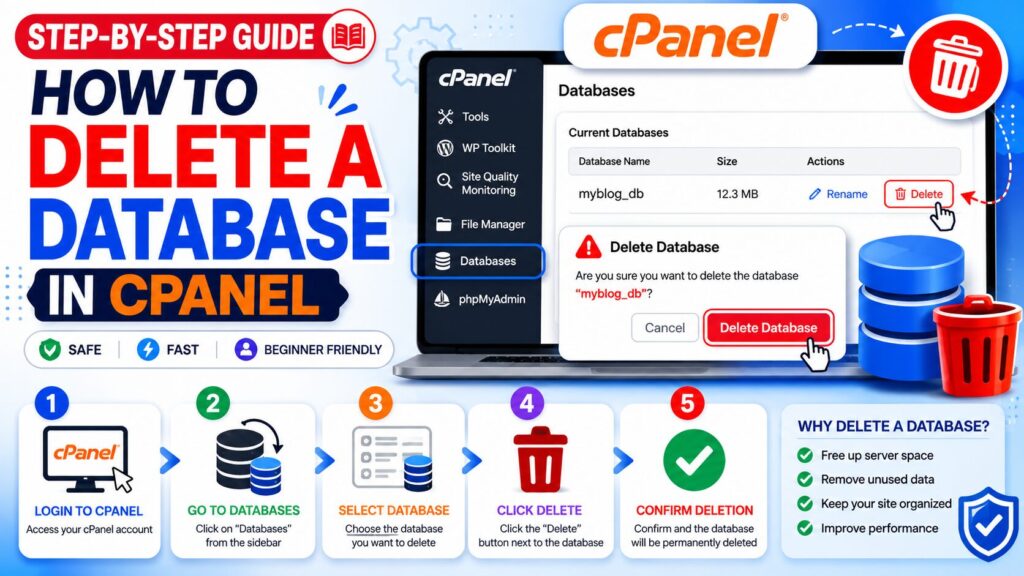
Step 1: Log in to cPanel
What to do
Log in to your hosting account and open cPanel.
Why you’re doing it
cPanel provides access to all website and database management tools.
What you’ll see
The cPanel dashboard with various management sections.
Beginner Tip
Use the search bar at the top if you cannot find a menu quickly.
Common Mistake
Logging into the wrong hosting account.
Step 2: Open MySQL® Databases
What to do
Scroll to the Databases section.
Click MySQL® Databases.
Why you’re doing it
This page lets you create, manage, and delete databases.
What you’ll see
A list of databases under Current Databases.
Beginner Tip
Database names usually begin with your cPanel username.
Common Mistake
Confusing the database name with the database user.
Step 3: Locate the Database
What to do
Find the database you want to remove.
Double-check the name before continuing.
Why you’re doing it
Deleting the wrong database may break a website.
What you’ll see
Each database listed with management options.
Beginner Tip
If you’re unsure, check your website’s configuration file first.
Common Mistake
Deleting an active WordPress database.
Step 4: Delete the Database
What to do
Click Delete next to the selected database.
Confirm the deletion when prompted.
Why you’re doing it
This permanently removes the database from your hosting account.
What you’ll see
A confirmation message asking if you’re sure.
Beginner Tip
Read the confirmation carefully before clicking.
Common Mistake
Ignoring the warning message.
Step 5: Confirm the Database Has Been Removed
What to do
Refresh the Current Databases list.
Why you’re doing it
To verify that the database has been successfully deleted.
What you’ll see
The deleted database will no longer appear.
Beginner Tip
If it still appears, refresh the page or log in again.
Common Mistake
Assuming deletion failed before refreshing.
What Happens After Deleting a Database?
Once deleted:
- All tables are removed.
- Website content stored inside is erased.
- Database users remain unless removed separately.
- Websites using the database stop working.
- Recovery requires a backup.
Best Practices
- Always create a backup first.
- Verify the database belongs to the correct website.
- Delete only unused databases.
- Keep your hosting account organized.
- Remove unused database users after deletion.
- Label important databases clearly.
- Document major changes.
Common Problems and Solutions
| Problem | Solution |
|---|---|
| Wrong database selected | Stop immediately and restore from backup if available. |
| Delete button missing | Check hosting account permissions. |
| Website stops working | Restore the deleted database from backup. |
| Database still appears | Refresh cPanel or clear browser cache. |
| Unsure which database is used | Check your website’s configuration file before deleting. |
Frequently Asked Questions
1. Can I recover a deleted database?
Only if you have a backup.
2. Does deleting a database remove my website files?
No.
Website files remain in File Manager.
3. Will my website stop working?
Yes.
If the website uses that database, it will stop functioning.
4. Is deleting a database permanent?
Yes.
It is permanently removed unless restored from a backup.
5. Should I delete unused databases?
Yes.
Unused databases make account management more difficult.
6. Can I delete database users separately?
Yes.
Database users can be removed independently from the database.
7. How do I know which database my website uses?
Check your application’s configuration file (such as the WordPress wp-config.php file).
8. Is deleting a database safe?
Yes, provided you’ve confirmed it’s no longer needed and created a backup first.
Conclusion
Learning how to delete a database in cPanel is an important skill for managing your hosting account. Removing unused databases helps keep your account organized and reduces clutter.
Before deleting any database, always verify that it is no longer in use and create a backup. A few extra minutes spent checking can prevent accidental data loss.
Following the steps in this guide will help you delete databases safely and confidently, even if you’re new to cPanel.
