
How to Create Cron Job via cPanel (2026 Beginner’s Guide)
How to Create Cron Job via cPanel (2026 Beginner’s Guide)

Introduction
If you manage a website, there are many repetitive tasks that you may need to perform regularly. For example, creating backups, cleaning temporary files, sending scheduled emails, or running maintenance scripts. Doing these tasks manually can take time and you might forget to do them.
That’s where Cron Jobs come in.
Learning how to create Cron Job via cPanel allows you to automate these repetitive tasks. Once you schedule a Cron Job, your server will automatically run the selected command at the time you choose.
In this beginner-friendly guide, you’ll learn:
- What a Cron Job is
- How Cron Jobs work
- When to use them
- How to create a Cron Job in cPanel
- Common mistakes to avoid
- Best practices for safe scheduling
What Is a Cron Job?

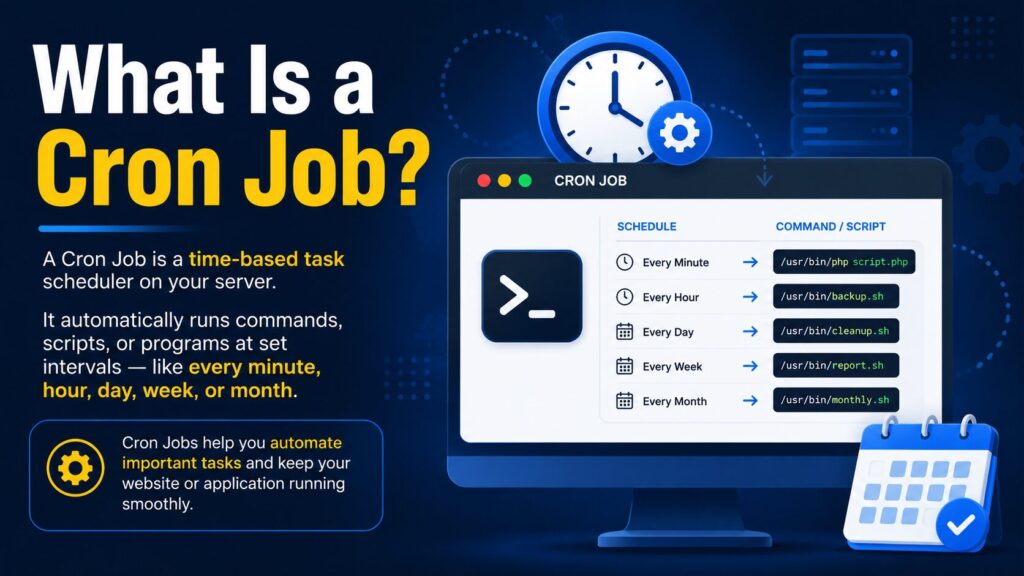
A Cron Job is a scheduled task that automatically runs a command or script on your web server at specific times.
Think of it like setting an alarm clock.
Instead of reminding you to do something, the server performs the task automatically.
Real-World Example
Imagine your website creates a backup every night at midnight.
Without Cron Job:
- You must log in every night.
- Click Backup.
- Wait until it’s finished.
With Cron Job:
- The server creates the backup automatically every night.
No manual work is needed.
How Does a Cron Job Work?
A Cron Job has two parts:
| Part | Description |
|---|---|
| Schedule | When the task should run |
| Command | What the server should do |
Example:
Run every day at 2:00 AM
Command:
php /home/username/public_html/backup.phpAt exactly 2:00 AM, the server runs the script automatically.
Why Is It Important?
Cron Jobs save both time and effort.
Benefits
- Automates repetitive tasks
- Saves time
- Reduces human error
- Improves website maintenance
- Keeps your website updated
- Runs scripts even when you’re offline
- Helps schedule backups
- Automates email sending
- Cleans logs and temporary files
- Improves website reliability
Common Uses of Cron Jobs
Many website owners use Cron Jobs for:
- Daily website backups
- WordPress scheduled tasks
- Sending newsletters
- Clearing cache
- Updating inventory
- Running database optimization
- Importing data
- Exporting reports
- Cleaning temporary files
- Checking website status
Step-by-Step Guide to Create Cron Job via cPanel
Step 1: Log in to cPanel
What to Do
Open your hosting account and log in to cPanel.
Why
Cron Jobs are managed inside cPanel.
What You’ll See
The cPanel dashboard.
Beginner Tip
Use the search box and type:
Cron Jobsto find it quickly.
Common Mistake
Using the wrong cPanel account.
Step 2: Open the Cron Jobs Tool
Inside cPanel,
Click:
Advanced → Cron Jobs
Why
This page lets you create and manage scheduled tasks.
What You’ll See
You’ll find:
- Email notification section
- Add New Cron Job
- Existing Cron Jobs
Step 3: Set Your Notification Email (Optional)
At the top, enter your email address.
Example:
Why
If your Cron Job generates output or encounters an error, cPanel can send an email notification.
Beginner Tip
Use an email address you check regularly.
Step 4: Choose the Schedule
This is where you decide when your task should run.
You can either:
- Use Common Settings
- Enter custom timing
Common Settings Examples
| Option | Runs |
|---|---|
| Once Per Minute | Every minute |
| Once Per Hour | Every hour |
| Twice Per Day | Every 12 hours |
| Once Per Day | Every day |
| Once Per Week | Weekly |
| Once Per Month | Monthly |
Why
The schedule tells the server when to execute the command.
Beginner Tip
Start with Once Per Day while testing.
Step 5: Enter the Command
In the Command box, type your command.
Example PHP script:
php /home/username/public_html/script.phpExample using full path:
/usr/local/bin/php /home/username/public_html/script.phpWhy
This tells the server exactly what to execute.
What You’ll See
The command appears in the Command field.
Beginner Tip
Always use the full path.
Common Mistakes
- Wrong file path
- Missing PHP executable
- Typing mistakes
- Wrong filename
Step 6: Click Add New Cron Job
Click:
Add New Cron Job
Why
This saves your schedule.
What You’ll See
Your Cron Job appears in the Current Cron Jobs list.
Step 7: Test Your Cron Job
Wait until the scheduled time.
Check:
- Email notification
- Generated files
- Website logs
- Script results
If everything works correctly, your Cron Job is active.
Understanding Cron Timing
Cron uses five timing fields.
| Field | Meaning |
|---|---|
| Minute | 0–59 |
| Hour | 0–23 |
| Day | 1–31 |
| Month | 1–12 |
| Weekday | 0–7 |
Example:
0 3 * * *Means:
Run every day at 3:00 AM.
Common Cron Job Examples
| Task | Example |
|---|---|
| Every minute | * * * * * |
| Every hour | 0 * * * * |
| Daily at midnight | 0 0 * * * |
| Weekly | 0 0 * * 0 |
| Monthly | 0 0 1 * * |
Best Practices
- Test scripts manually before scheduling.
- Use the full path to scripts.
- Keep Cron Jobs as simple as possible.
- Avoid running heavy tasks every minute.
- Monitor email notifications for errors.
- Remove unused Cron Jobs.
- Document the purpose of each task.
- Back up your website before making changes.
- Review your schedules regularly.
- Use secure file permissions.
Common Problems and Solutions
| Problem | Solution |
|---|---|
| Cron Job doesn’t run | Check the schedule and command path. |
| Wrong file path | Use the absolute file path. |
| Permission denied | Make sure the script has the correct permissions. |
| PHP not found | Use the correct PHP executable path. |
| Too many emails | Disable unnecessary Cron output or adjust notifications. |
| Script takes too long | Optimize the script or reduce how often it runs. |
| Website slows down | Schedule heavy tasks during low-traffic hours. |
Cron Job Checklist
Before clicking Add New Cron Job, verify:
- Hosting account is active
- Logged into cPanel
- Script works correctly
- Correct schedule selected
- Correct command entered
- Full file path used
- Email notification configured (optional)
- Website backup completed
Frequently Asked Questions (FAQs)
1. What is a Cron Job in cPanel?
A Cron Job is a scheduled task that automatically runs commands or scripts on your server.
2. Is creating a Cron Job safe?
Yes, as long as you use trusted scripts and correct commands.
3. Can I edit a Cron Job later?
Yes. cPanel allows you to edit or delete existing Cron Jobs at any time.
4. How often should a Cron Job run?
It depends on the task. Backups may run daily, while maintenance tasks may run weekly or monthly.
5. Do I need coding knowledge?
No. Basic knowledge of file paths and commands is helpful, but many hosting providers offer examples.
6. Can I delete a Cron Job?
Yes. Open the Cron Jobs page in cPanel and remove it whenever it’s no longer needed.
7. Will Cron Jobs slow down my website?
Not usually. However, running resource-intensive tasks too frequently can affect server performance.
8. Why am I receiving Cron Job emails?
These emails contain the output or errors generated by your scheduled task. They help you monitor whether the task is working correctly.
Conclusion
Now you know how to create Cron Job via cPanel and automate routine website tasks without manual effort. Cron Jobs are a powerful feature for website owners, bloggers, and businesses because they save time, reduce mistakes, and keep websites running smoothly.
Start with a simple schedule, test your script carefully, and monitor the results. As you become more comfortable, you can automate more advanced maintenance tasks while keeping your website reliable and efficient.
