
Change PHP Version in cPanel (2026 Beginner’s Guide)
Learn How to Change the PHP Version on Your Domain Using cPanel (2026 Beginner’s Guide)

Changing the PHP version on your website may sound technical, but it’s actually one of the easiest tasks you can perform in cPanel. Whether you’re running a WordPress website, a business site, or a personal blog, selecting the right PHP version helps your website stay secure, fast, and compatible with the latest applications.
In this beginner-friendly guide, you’ll learn how to change the PHP version on your domain using cPanel, why it’s important, what you need before getting started, and the common mistakes to avoid.
What Is PHP?
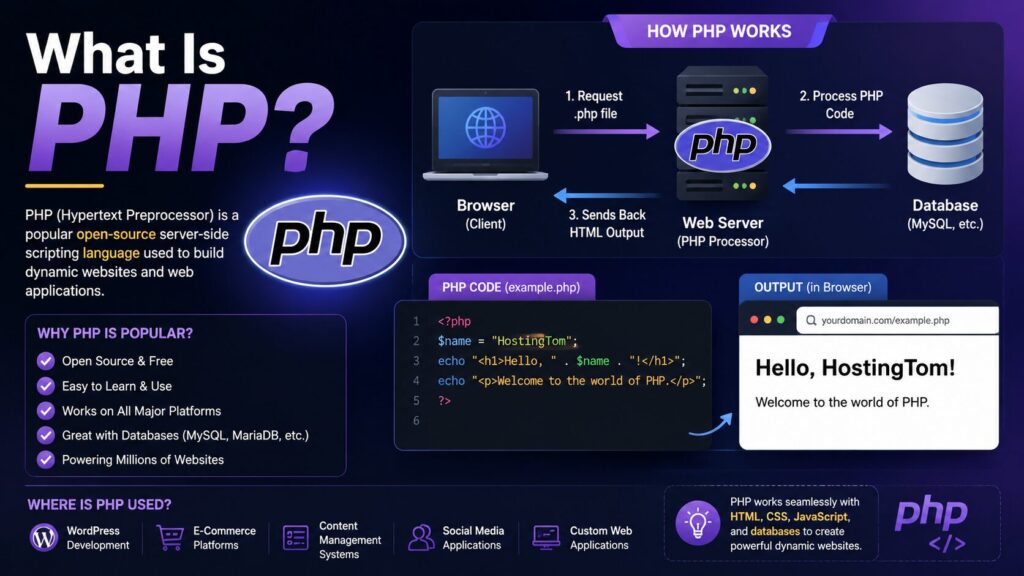
PHP is a programming language that powers dynamic websites. It runs behind the scenes and helps websites display pages, process forms, manage logins, and connect to databases.
Popular platforms that use PHP include:
- WordPress
- Joomla
- Drupal
- Magento
- Laravel applications
Simple Example
Think of PHP as the engine inside a car.
Visitors only see the car moving (your website), but PHP is the engine making everything work in the background.
Why Is Changing the PHP Version Important?
Using the correct PHP version provides several benefits.
| Benefit | Why It Matters |
|---|---|
| Better Security | Newer versions include security improvements. |
| Faster Website | Modern PHP versions execute code more efficiently. |
| Better Compatibility | Required by many themes and plugins. |
| Improved Performance | Reduces page loading time. |
| New Features | Developers add useful improvements in every release. |
You might need to change PHP if:
- Your WordPress plugin requires PHP 8.2.
- Your website shows compatibility warnings.
- You’re upgrading WordPress.
- You’re troubleshooting errors.
- Your hosting provider recommends a newer version.
Requirements Before You Start
Before changing the PHP version, make sure you have:
- ✅ Active hosting account
- ✅ cPanel login credentials
- ✅ Recent website backup
- ✅ Modern web browser
- ✅ Enough hosting space for backups
Important: Always create a backup before changing your PHP version. If a plugin or theme isn’t compatible, you can restore your website quickly.
Step-by-Step Guide to Change PHP Version in cPanel
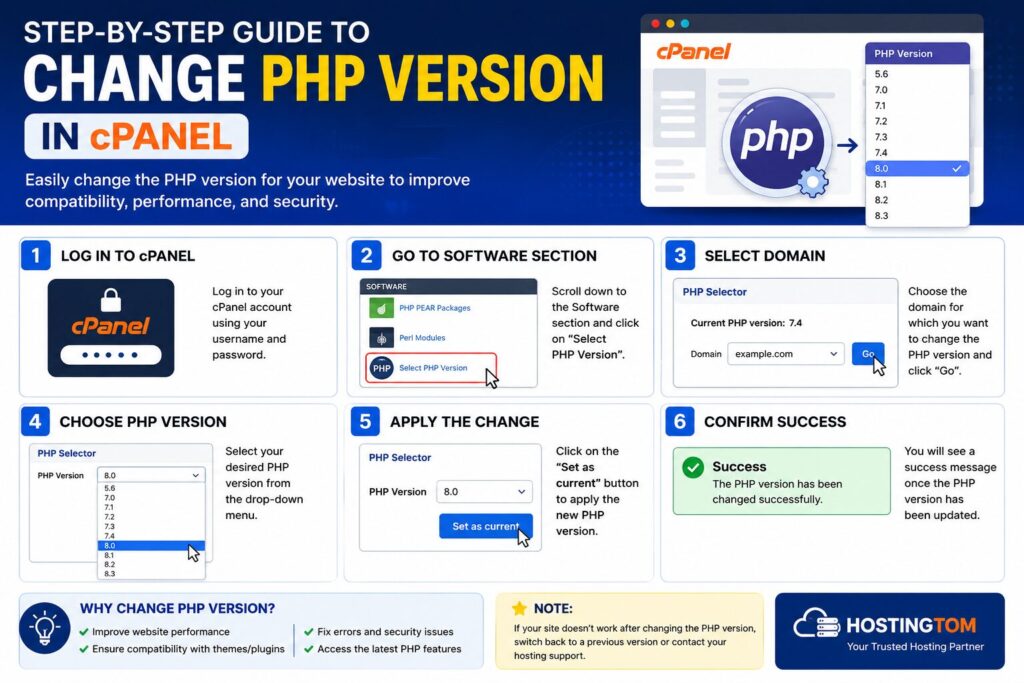
Step 1: Log in to cPanel
What to do
Sign in to your hosting account and open cPanel.
Why
This is where you manage your website settings.
What you’ll see
The cPanel dashboard with various management tools.
Beginner Tip
Use your hosting provider’s client area if you don’t know your cPanel login details.
Common Mistake
Trying to access cPanel with incorrect credentials.
Step 2: Open the PHP Selector
Scroll down to the Software section.
Depending on your hosting provider, click one of these:
- Select PHP Version
- PHP Selector
- MultiPHP Manager
- MultiPHP INI Editor
Why
This tool lets you choose which PHP version your website uses.
What you’ll see
A list of domains along with their current PHP version.
Beginner Tip
Different hosting companies may use slightly different names for this tool.
Step 3: Select Your Domain
If you have multiple websites, choose the correct domain.
Why
Each domain can use a different PHP version.
What you’ll see
Your selected domain highlighted.
Beginner Tip
Double-check the domain name before making changes.
Common Mistake
Changing the PHP version for the wrong website.
Step 4: Choose the New PHP Version
Open the version dropdown.
You may see versions such as:
- PHP 7.4
- PHP 8.0
- PHP 8.1
- PHP 8.2
- PHP 8.3
Choose the version recommended for your website.
Why
Different websites and applications require different PHP versions.
What you’ll see
The selected version displayed beside your domain.
Beginner Tip
If you’re using the latest version of WordPress, choose the newest stable PHP version supported by your hosting provider.
Common Mistake
Selecting a version that older plugins don’t support.
Step 5: Apply the Changes
Click:
- Apply
- Save
- Set as Current
- Update
(The button name depends on your hosting provider.)
Why
This activates the new PHP version.
What you’ll see
A confirmation message showing the update was successful.
Beginner Tip
Wait a few moments before checking your website.
Common Mistake
Closing the page before the changes finish saving.
Step 6: Test Your Website
Visit your website after updating PHP.
Check:
- Homepage
- Contact forms
- Login page
- WordPress dashboard
- Shopping cart (if applicable)
Why
This ensures everything works correctly after the update.
Beginner Tip
Clear your browser and website cache before testing.
Recommended PHP Versions
| PHP Version | Status | Recommendation |
|---|---|---|
| PHP 7.4 | End of Life | Not Recommended |
| PHP 8.0 | Security Support Ended | Upgrade Soon |
| PHP 8.1 | Good | Recommended |
| PHP 8.2 | Excellent | Highly Recommended |
| PHP 8.3 | Latest Stable | Best Choice (if supported) |
Best Practices
- Always create a backup first.
- Keep WordPress updated.
- Update plugins before changing PHP.
- Update themes regularly.
- Remove unused plugins.
- Test your website after switching versions.
- Use the latest supported PHP version.
- Keep regular backups.
Common Problems and Solutions
| Problem | Solution |
|---|---|
| Website shows errors | Switch back to the previous PHP version. |
| White screen | Disable incompatible plugins. |
| Plugin stopped working | Update or replace the plugin. |
| Website is slow | Clear cache and optimize your site. |
| PHP option missing | Contact your hosting provider. |
| Internal Server Error | Check your .htaccess file and PHP compatibility. |
Checklist Before Changing PHP Version
- ✔ Website backup completed
- ✔ WordPress updated
- ✔ Plugins updated
- ✔ Theme updated
- ✔ Compatible PHP version selected
- ✔ Website tested afterward
Frequently Asked Questions
1. Is changing the PHP version safe?
Yes, as long as you create a backup before making changes.
2. Which PHP version should I use?
Use the latest stable version supported by your hosting provider and website software.
3. Will changing PHP delete my website?
No. It only changes the programming environment.
4. Can every domain use a different PHP version?
Yes. Most hosting providers allow different PHP versions for different domains.
5. What happens if my plugins are incompatible?
Your website may show errors until the plugins are updated or you switch back to the previous PHP version.
6. Do I need technical knowledge?
No. cPanel makes changing the PHP version simple.
7. How long does it take?
Usually less than two minutes.
8. Can I switch back later?
Yes. You can change the PHP version whenever needed.
Conclusion
Knowing how to change the PHP version on your domain using cPanel is an essential skill for every website owner. Using the correct PHP version improves your website’s speed, security, and compatibility with modern applications.
Before making any changes, always create a backup, choose a supported PHP version, and test your website afterward. With just a few clicks in cPanel, you can keep your website running smoothly and ready for future updates.
