
How to Edit or Delete Cron Job via cPanel (2026 Guide)
How to Edit or Delete Cron Job via cPanel (2026 Beginner’s Guide)

Managing Cron Jobs is an important part of maintaining a website. Sometimes a scheduled task needs to be updated, while other times it should be removed completely. Knowing how to edit or delete Cron Job via cPanel helps keep your website running smoothly and prevents unnecessary server activity.
Whether you’re managing a WordPress website, an online store, or a custom PHP application, this guide will show you exactly how to modify or remove Cron Jobs safely.
In this beginner-friendly tutorial, you’ll learn:
- What a Cron Job is
- When you should edit or delete one
- Requirements before getting started
- Step-by-step instructions
- Common mistakes to avoid
- Best practices
- Frequently asked questions
What Is a Cron Job?
A Cron Job is a scheduled task that automatically runs commands or scripts at specific times.
Instead of manually performing repetitive tasks every day, Cron Jobs do them automatically.
Real-world example
Imagine setting an alarm every morning.
You don’t need to remember to wake up because the alarm reminds you.
A Cron Job works the same way for your website.
It can automatically:
- Publish scheduled posts
- Send email reports
- Clean temporary files
- Run backups
- Execute WordPress maintenance
- Sync databases
Why Edit or Delete a Cron Job?
Over time, website requirements change.
You may need to update an existing Cron Job or remove one that’s no longer useful.
Editing or deleting old Cron Jobs helps keep your server organized and efficient.
Benefits include:
- Prevents unnecessary server load
- Reduces CPU usage
- Avoids duplicate scheduled tasks
- Keeps your Cron Job list clean
- Prevents script errors
- Improves website performance
Requirements Before You Start
Before editing or deleting a Cron Job, make sure you have:
| Requirement | Why It’s Needed |
|---|---|
| Hosting account | Access to your website |
| cPanel login | To manage Cron Jobs |
| Existing Cron Job | Something to edit or delete |
| Web browser | To access cPanel |
| Backup (recommended) | In case changes need to be reversed |
Important: Always double-check that the Cron Job is no longer needed before deleting it.
Understanding the Edit and Delete Options
Inside cPanel’s Cron Jobs page, each Cron Job usually includes two buttons:
- Edit
- Delete
Edit
Allows you to change:
- Schedule
- Command
- Execution frequency
Delete
Removes the Cron Job permanently.
After deletion, it will never run again unless you create it again.
Step-by-Step Guide to Edit or Delete Cron Job via cPanel
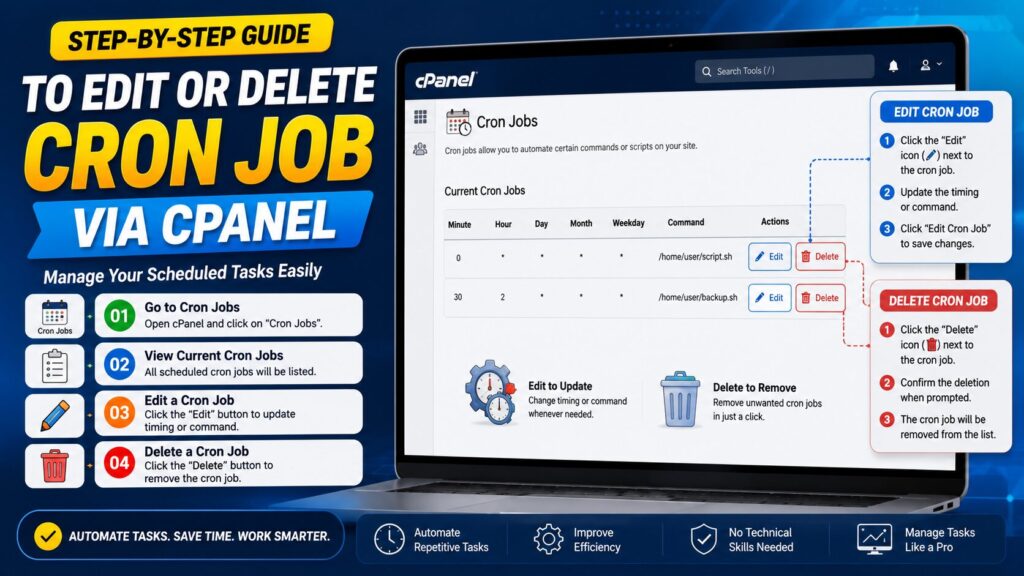
Step 1: Log in to cPanel
Open your hosting account.
Log in using your cPanel username and password.
Why?
All Cron Job settings are managed inside cPanel.
You’ll see
The cPanel dashboard with many management tools.
Beginner Tip
Use the search bar at the top if you can’t find Cron Jobs.
Common Mistake
Logging into the wrong hosting account.
Step 2: Open the Cron Jobs Tool
Search for:
Cron Jobs
Click its icon.
Why?
This section lists every scheduled task on your hosting account.
You’ll see
A list of existing Cron Jobs.
Each entry shows:
- Schedule
- Command
- Edit button
- Delete button
Step 3: Find the Cron Job You Want to Change
Carefully identify the Cron Job.
Read its command.
Check its timing.
Why?
Deleting the wrong Cron Job may stop an important website feature.
Beginner Tip
If you have many Cron Jobs, compare the command path before making changes.
Step 4: Edit the Cron Job
Click the Edit button.
You’ll now be able to modify:
- Minute
- Hour
- Day
- Month
- Weekday
- Command
Why?
Sometimes a script should run more or less frequently.
Example:
Instead of every minute:
* * * * *Run every hour:
0 * * * *What You’ll See
The Cron Job settings become editable.
After updating, click:
Save
or
Update
depending on your hosting provider.
Beginner Tips
Only change one setting at a time.
Test the Cron Job afterward.
Common Mistakes
- Editing the wrong command
- Incorrect schedule
- Removing spaces accidentally
- Forgetting to save changes
Step 5: Delete the Cron Job
If the Cron Job is no longer needed:
Click:
Delete
A confirmation message may appear.
Choose:
Yes
The Cron Job disappears from the list.
Why?
Removing unused tasks reduces unnecessary server activity.
Beginner Tip
Take a screenshot before deleting.
You’ll have a record if you need to recreate it later.
Common Mistakes
Deleting WordPress Cron Jobs without knowing their purpose.
How to Verify Your Changes
After editing or deleting:
Refresh the Cron Jobs page.
Check that:
- The updated schedule appears correctly.
- The deleted Cron Job no longer exists.
If you edited the command, monitor your website to ensure everything works correctly.
When Should You Edit Instead of Delete?
Edit the Cron Job if:
- Only the schedule needs changing
- The script path has changed
- You want it to run less often
- You moved files to another folder
Delete the Cron Job if:
- The script no longer exists
- The website feature was removed
- The plugin was uninstalled
- The task causes errors
- It was created by mistake
Common Cron Job Schedule Examples
| Frequency | Schedule |
| Every minute | * * * * * |
| Every 5 minutes | */5 * * * * |
| Every hour | 0 * * * * |
| Every day at midnight | 0 0 * * * |
| Every Sunday | 0 0 * * 0 |
| Once a month | 0 0 1 * * |
Common Problems and Solutions
| Problem | Solution |
| Edit button missing | Check hosting permissions |
| Cron Job not updating | Save changes and refresh cPanel |
| Deleted wrong Cron Job | Recreate it manually |
| Website stops working | Restore the correct command |
| Command not found | Verify file path |
| Too many Cron Jobs | Remove unused ones |
| Changes not taking effect | Wait for the next scheduled run |
| Permission denied | Check script permissions |
Frequently Asked Questions
1. Can I edit a Cron Job anytime?
Yes. You can edit a Cron Job whenever needed.
2. Does deleting a Cron Job delete my website files?
No.
It only removes the scheduled task.
3. Can I recover a deleted Cron Job?
Not automatically.
You’ll need to create it again manually.
4. Will editing a Cron Job affect my website?
Only if you change the wrong schedule or command.
Always review your changes carefully.
5. Is it safe to delete old Cron Jobs?
Yes, if they are no longer required.
6. How often should I review Cron Jobs?
Every few months or whenever you install or remove website software.
7. Can WordPress create Cron Jobs?
Yes.
Some plugins create Cron Jobs for backups, security scans, or scheduled tasks.
8. Why isn’t my edited Cron Job working?
Possible reasons include:
- Wrong schedule
- Incorrect command
- Missing script
- Permission issues
9. Should I back up my website before deleting a Cron Job?
Yes.
Although deleting a Cron Job doesn’t remove files, a backup is always recommended.
10. Can shared hosting users edit Cron Jobs?
Yes.
Most shared hosting plans that include cPanel allow Cron Job management.
Conclusion
Knowing how to edit or delete Cron Job via cPanel is an essential skill for every website owner. Updating schedules ensures your automated tasks run at the right time, while removing unnecessary Cron Jobs helps improve server performance and keeps your hosting account organized.
Before making any changes, always review the Cron Job carefully, create a backup if necessary, and test your website afterward. By following the simple steps in this guide, you can confidently manage Cron Jobs in cPanel without needing advanced technical knowledge.
