
How to Edit a File in the cPanel File Manager (2026 Guide)
Introduction
Managing a website often means making small changes to its files. Whether you need to update text, fix an error, change website settings, or modify code, you don’t always need advanced software to get the job done.
One of the easiest ways to Edit Files cPanel is by using the built-in cPanel File Manager. It allows you to open, edit, and save website files directly from your web browser without installing an FTP client or downloading files to your computer.
In this beginner-friendly guide, you’ll learn how to Edit Files cPanel safely using the File Manager. We’ll cover how to find the right files, make changes with the built-in editor, avoid common mistakes, and follow best practices to keep your website secure and running smoothly.

What Is Editing a File in the cPanel File Manager?
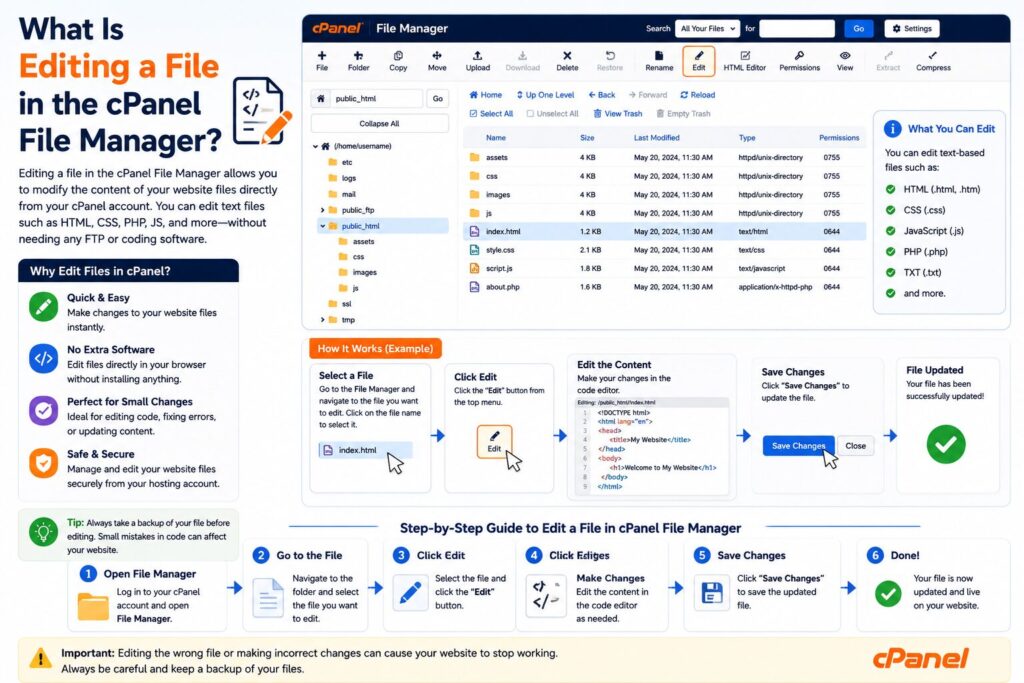
Editing a file in the cPanel File Manager means opening a file stored on your web hosting account, making changes to its contents, and saving those changes directly from your browser.
Instead of downloading a file, editing it on your computer, and uploading it again, File Manager allows you to make quick edits online.
Real-world example
Imagine you notice a spelling mistake on your website’s homepage.
Instead of rebuilding the entire website, you can simply:
- Open File Manager
- Find the webpage file
- Edit the text
- Save the file
The change becomes live immediately.
Why Is It Important?
Editing files directly in cPanel is useful because it helps you quickly maintain your website.
Benefits include:
- No additional software required
- Fast website updates
- Fix coding mistakes quickly
- Edit HTML, PHP, CSS, JavaScript, and text files
- Manage WordPress configuration files
- Save time when making small changes
- Accessible from any browser
Common situations include:
- Fixing website errors
- Updating contact information
- Editing CSS styles
- Adding verification codes
- Changing PHP settings
- Updating robots.txt
- Editing .htaccess rules
Requirements Before You Start
Before editing any file, make sure you have:
| Requirement | Why It’s Needed |
|---|---|
| Active hosting account | Stores your website files |
| cPanel login credentials | Access File Manager |
| Recent backup | Protects against mistakes |
| Modern web browser | Opens File Manager properly |
| Basic knowledge of files | Prevents accidental edits |
| Enough storage | For backup copies if needed |
Important: Always create a backup before editing important website files.
Understanding the File Editor
The cPanel File Manager includes a built-in text editor.
It allows you to edit:
- HTML files
- PHP files
- CSS files
- JavaScript files
- TXT files
- XML files
- Configuration files
The editor includes:
- Line numbers
- Syntax highlighting
- Search feature
- Undo support
- Save button
Common File Types You Can Edit
| File Type | Purpose |
| HTML | Web page content |
| PHP | Website functionality |
| CSS | Website design |
| JS | Interactive features |
| TXT | Plain text information |
| XML | Structured data |
| robots.txt | Search engine instructions |
| .htaccess | Website configuration |
Step-by-Step Guide to Edit a File in the cPanel File Manager
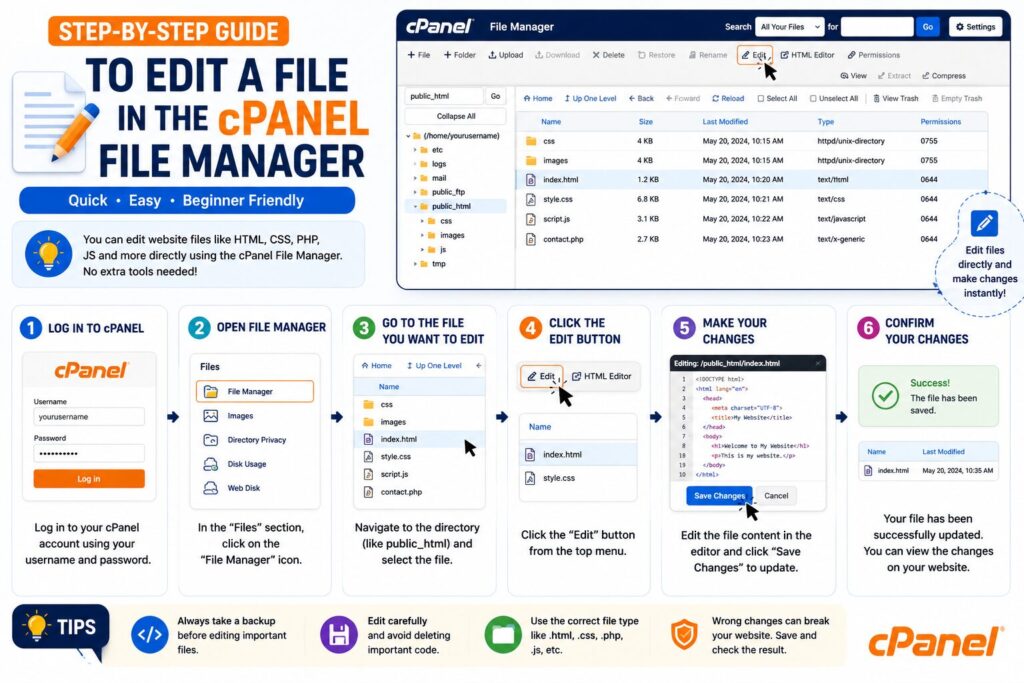
Step 1: Log in to cPanel
Open your hosting provider’s cPanel login page.
Enter your:
- Username
- Password
Click Log In.
Why?
You need access to your hosting account before managing files.
What you’ll see
The cPanel dashboard with different management tools.
Beginner Tip
Bookmark your cPanel login page for quicker access.
Common Mistake
Using incorrect login credentials.
Step 2: Open File Manager
Scroll to the Files section.
Click File Manager.
Why?
File Manager stores every website file on your hosting account.
What you’ll see
A folder structure similar to Windows File Explorer.
Folders commonly include:
- public_html
- logs
- tmp
Step 3: Open Your Website Folder
Double-click public_html.
If you have multiple websites, open the correct domain folder.
Why?
Most website files are stored inside public_html.
What you’ll see
Website files such as:
- index.php
- index.html
- wp-config.php
- images
- css
- js
Beginner Tip
Double-check you’re editing the correct website.
Step 4: Locate the File You Want to Edit
Browse through folders until you find the required file.
Examples:
- index.php
- header.php
- footer.php
- style.css
- robots.txt
You can also use the search feature.
Why?
Finding the correct file avoids editing the wrong part of your website.
Common Mistake
Editing the wrong file with a similar name.
Step 5: Select the File
Click the file once.
The file becomes highlighted.
Why?
The Edit option only appears after selecting a file.
Step 6: Click Edit
Click Edit from the top toolbar.
Some hosting providers may show:
- Edit
- Code Editor
If prompted, click Edit again.
What you’ll see
A built-in editor opens in a new tab or popup.
Beginner Tip
If you’re editing code, choose the Code Editor for syntax highlighting.
Step 7: Make Your Changes
Edit the text carefully.
Examples include:
- Correct spelling
- Update website content
- Change CSS colors
- Modify PHP settings
- Add verification codes
Why?
This is where you make the required website changes.
Beginner Tip
Only edit the lines you understand.
Step 8: Review Your Changes
Read your edits carefully.
Check for:
- Missing brackets
- Missing quotation marks
- Extra spaces
- Typing mistakes
Why?
Even one missing character can break a website.
Common Mistake
Saving without reviewing.
Step 9: Save the File
Click Save Changes.
Wait for the confirmation message.
What you’ll see
A success notification confirming the file has been updated.
Beginner Tip
Don’t close the editor until the save confirmation appears.
Step 10: Test Your Website
Visit your website.
Refresh the page.
Check whether:
- Changes appear correctly
- No errors are displayed
- The page loads normally
Why?
Testing confirms the edit worked successfully.
Common Mistake
Forgetting to clear the browser cache after editing CSS files.
Which Files Should You Be Careful Editing?
Some files control your entire website.
Examples include:
| File | Be Careful Because |
| wp-config.php | WordPress configuration |
| .htaccess | Server settings |
| functions.php | WordPress theme functions |
| config.php | Application settings |
| index.php | Homepage loading |
Always create a backup before editing these files.
Best Practices
Follow these tips whenever editing files:
- Create a backup first
- Edit only one file at a time
- Test changes immediately
- Keep a copy of the original file
- Use Code Editor for coding files
- Avoid editing files during peak traffic
- Write down what you changed
- Don’t delete code unless necessary
- Refresh your browser after editing
- Clear website cache if changes don’t appear
Common Problems and Solutions
| Problem | Solution |
| Save button not working | Refresh File Manager |
| Website breaks | Restore the backup |
| Permission denied | Check file permissions |
| Blank screen | Review recent code changes |
| Changes don’t appear | Clear browser and website cache |
| File won’t open | Verify file permissions |
| Editor freezes | Reload cPanel |
| Wrong file edited | Restore the original backup |
Beginner Checklist
Before editing:
- ✅ Backup created
- ✅ Logged into cPanel
- ✅ Correct website selected
- ✅ Correct file located
- ✅ Browser updated
After editing:
- ✅ File saved
- ✅ Website tested
- ✅ Cache cleared
- ✅ Errors checked
- ✅ Backup retained
Frequently Asked Questions
1. Is editing files in cPanel safe?
Yes. It is safe as long as you edit the correct files and keep a recent backup.
2. Can I undo my changes?
Only if you have a backup or manually restore the original content.
3. Which files can I edit?
You can edit HTML, PHP, CSS, JavaScript, TXT, XML, robots.txt, and many configuration files.
4. Do I need coding knowledge?
Not always. Simple text changes are easy, but editing code requires basic programming knowledge.
5. Why isn’t my website updating?
Your browser or website cache may still be showing the old version. Clear the cache and refresh the page.
6. Can editing one file break my website?
Yes. A small coding mistake can cause pages to stop working, which is why backups are important.
7. Should I edit WordPress core files?
Generally, no. Editing WordPress core files can cause problems during updates. Use themes, plugins, or child themes whenever possible.
8. What’s the difference between Edit and Code Editor?
The Code Editor provides syntax highlighting and is better for editing programming files. The standard Edit option is suitable for plain text.
Conclusion
Learning how to edit a file in the cPanel File Manager is an essential skill for every website owner. It allows you to make quick updates, fix errors, and manage your website directly from your browser without additional software.
Always remember to create a backup before making changes, edit only the files you understand, and test your website after saving. These simple habits can help prevent mistakes and keep your website running smoothly.
With regular practice, you’ll become more confident using the cPanel File Manager to manage your website efficiently.
