
How to Change the Language in cPanel (2026 Beginner’s Guide)
Introduction
If you use cPanel to manage your website, changing the interface language can make it much easier to understand and navigate. Whether you’re more comfortable using English, Spanish, French, German, or another supported language, cPanel lets you switch languages in just a few clicks.
In this guide, you’ll learn how to change the language in cPanel, where to find the language settings, common issues you may face, and helpful tips for beginners.
What Is Changing the Language in cPanel?
Changing the language in cPanel means selecting a different language for the control panel interface. This affects menus, buttons, labels, and system messages—but it does not change your website’s language.
Real-world example
Imagine buying a smartphone that comes in English, but you prefer Hindi. Instead of learning another language, you simply change the phone’s language in Settings. cPanel works the same way.

Why Is It Important?
Changing the cPanel language provides several benefits.
- Makes cPanel easier to understand
- Reduces mistakes caused by language barriers
- Improves productivity
- Helps beginners learn faster
- Makes website management more comfortable
You may want to change the language if:
- English isn’t your primary language
- You’re helping someone who speaks another language
- You accidentally selected the wrong language
Requirements Before You Start
Before changing your cPanel language, make sure you have:
| Requirement | Why You Need It |
|---|---|
| Hosting account | Access to your website |
| cPanel login credentials | To sign in |
| Modern web browser | Chrome, Firefox, Edge, or Safari |
| Stable internet connection | Prevent interruptions |
| Basic cPanel access | Permission to change preferences |
Note: You don’t need a backup because changing the language only affects the cPanel interface, not your website files or data.
Step-by-Step Guide to Change the Language in cPanel
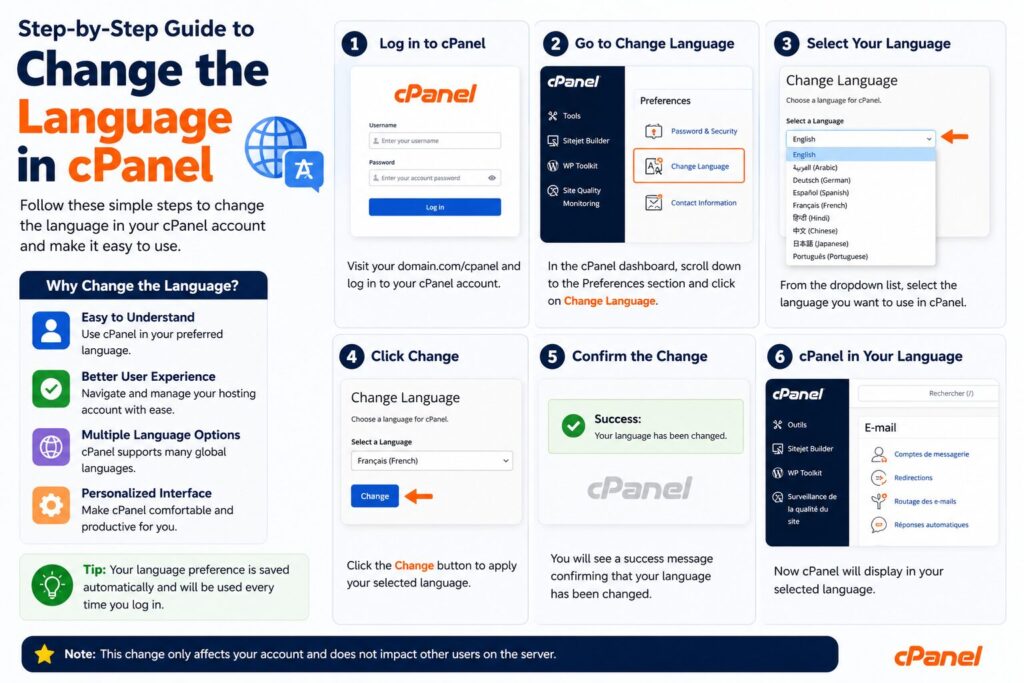
Step 1: Log in to cPanel
What to do
Open your hosting provider’s cPanel login page.
Enter:
- Username
- Password
Click Log In.
Why you’re doing it
You need access to your cPanel dashboard before changing any settings.
What you’ll see
The main cPanel dashboard with icons and categories.
Beginner Tip
Bookmark your cPanel login page for quicker access.
Common Mistake
Entering incorrect login credentials.
Step 2: Open the Preferences Section
What to do
Scroll down or use the search bar.
Find:
Preferences
Click:
Change Language
Why you’re doing it
This section contains all available language settings.
What you’ll see
A page with a language selection menu.
Beginner Tip
Use the search bar if you can’t find the Preferences section.
Common Mistake
Looking inside account settings instead of Preferences.
Step 3: Choose Your Preferred Language
What to do
Click the language dropdown list.
Select your preferred language.
Why you’re doing it
This tells cPanel which language to use for its interface.
What you’ll see
A list of languages such as:
- English
- Spanish
- French
- German
- Portuguese
- Italian
- Japanese
- Chinese
- Russian
- More (depending on your hosting provider)
Beginner Tip
Choose a language you understand best for easier website management.
Common Mistake
Selecting a language you can’t read, making navigation difficult.
Step 4: Save Your Changes
What to do
Click the Change or Save button.
Why you’re doing it
This applies the selected language.
What you’ll see
The dashboard reloads using the new language.
Beginner Tip
Refresh the page if the language doesn’t change immediately.
Common Mistake
Closing the browser before saving.
Step 5: Verify the Language Change
What to do
Browse different sections of cPanel.
Why you’re doing it
To confirm the new language has been applied everywhere.
What you’ll see
Menus and buttons displayed in your selected language.
Beginner Tip
If some text remains in English, your hosting provider may not have a complete translation installed.
Common Mistake
Assuming your website language has changed—it hasn’t.
Available cPanel Language Options
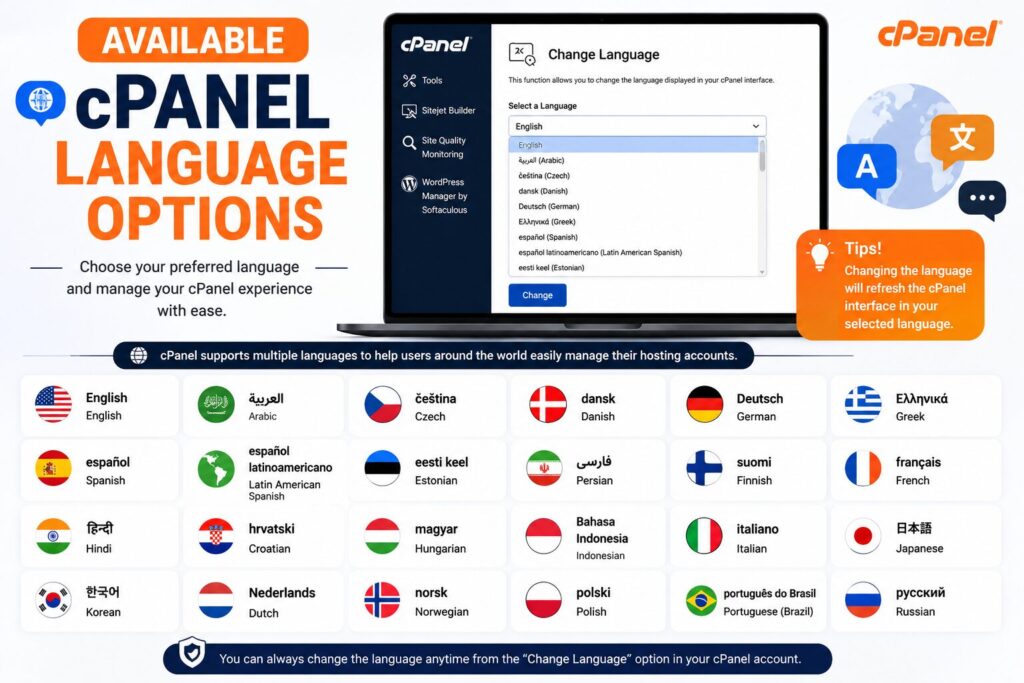
The available languages depend on your hosting provider.
Common options include:
- English
- Spanish
- French
- German
- Italian
- Portuguese
- Dutch
- Russian
- Japanese
- Chinese
- Turkish
Some hosting companies may install additional language packs.
Best Practices
- Use the language you’re most comfortable with.
- Keep cPanel updated.
- Avoid changing settings you don’t understand.
- Bookmark the language settings page.
- Ask your hosting provider if your preferred language isn’t available.
- Log out and back in if changes don’t appear immediately.
Common Problems and Solutions
| Problem | Solution |
|---|---|
| Language doesn’t change | Refresh the page or log in again |
| Language option missing | Contact your hosting provider |
| Some pages remain English | Translation may be incomplete |
| Changes not saved | Click Save before leaving |
| Browser cache issue | Clear browser cache and reload |
Checklist
Before changing your cPanel language:
- ✅ Have your cPanel login details
- ✅ Use a supported browser
- ✅ Stable internet connection
- ✅ Know your preferred language
- ✅ Save your changes
Frequently Asked Questions (FAQs)
1. Can I change the language in cPanel anytime?
Yes. You can switch languages whenever you want.
2. Will changing the language affect my website?
No.
It only changes the cPanel interface.
3. Do I need administrator access?
Usually, every cPanel user can change their own language.
4. Why can’t I find the Change Language option?
Some hosting providers customize cPanel or disable certain languages.
5. Will emails be translated too?
No.
Only the cPanel interface changes.
6. Can I switch back to English later?
Yes.
Simply repeat the same steps and choose English.
7. Why are some words still in English?
Some language packs are only partially translated.
8. Does changing the language require restarting cPanel?
No.
The change usually applies immediately after saving.
Conclusion
Now you know how to change the language in cPanel quickly and safely. The process only takes a minute and can make managing your hosting account much easier, especially if you prefer using your native language.
Remember, changing the language only affects the cPanel dashboard—not your website, files, or databases. If your preferred language isn’t available, contact your hosting provider to see if additional language packs can be installed.
