
How to Change an Account Password in cPanel (2026)
How to Change an Account Password in cPanel (2026 Beginner’s Guide)
Changing your account password in cPanel is one of the easiest ways to protect your website from unauthorized access. Whether you suspect someone knows your password or you simply want better security, updating your password regularly is a smart habit.
The good news is that changing your cPanel password only takes a few minutes.
In this guide, you’ll learn exactly how to change an account password in cPanel, when you should update it, common mistakes to avoid, and security best practices.

What Is Changing an Account Password in cPanel?
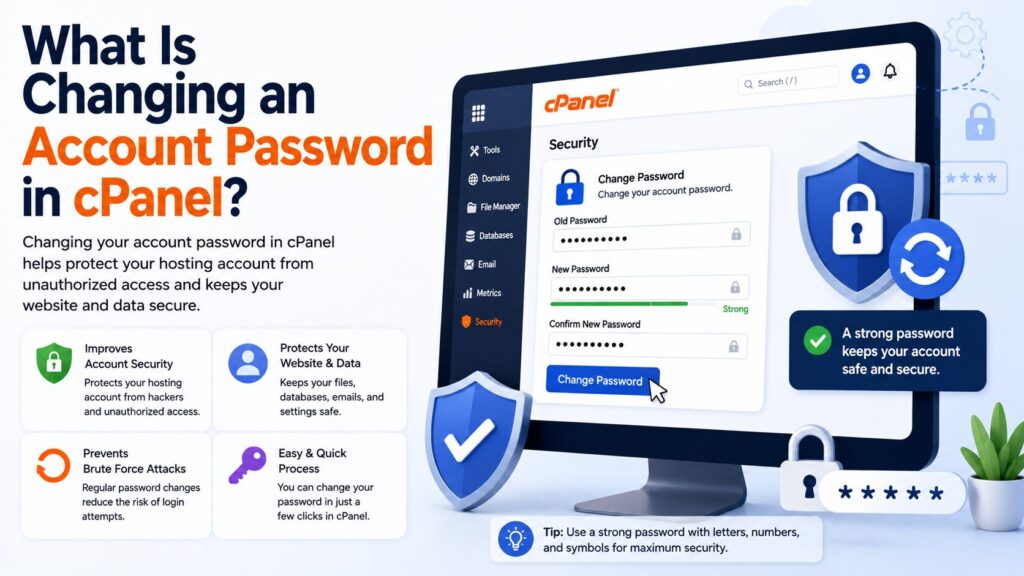
Changing your account password in cPanel means replacing your current login password with a new, stronger one.
This password protects access to:
- Website files
- Email accounts
- Databases
- Domain settings
- Backups
- Security tools
Simple Example
Think of your cPanel password like the key to your house.
If someone copies your key, your home isn’t secure anymore.
Changing your password is like replacing the lock with a new one.
Why Is It Important?
Regularly changing your password helps protect your website and hosting account.
Benefits include:
- Prevents unauthorized access
- Improves website security
- Protects customer information
- Reduces hacking risks
- Keeps your hosting account safe
- Meets many security recommendations
You should change your password if:
- You shared it with someone
- You suspect your account was compromised
- Your hosting provider recommends it
- You haven’t changed it for several months
Requirements Before You Start
Before changing your password, make sure you have:
- ✅ Active web hosting account
- ✅ cPanel login access
- ✅ Current password (in most cases)
- ✅ Updated email address for account recovery
- ✅ Modern web browser
- ✅ Password manager (recommended)
Important: If you forget your current password, contact your hosting provider to reset it.
Step-by-Step Guide to Change an Account Password in cPanel
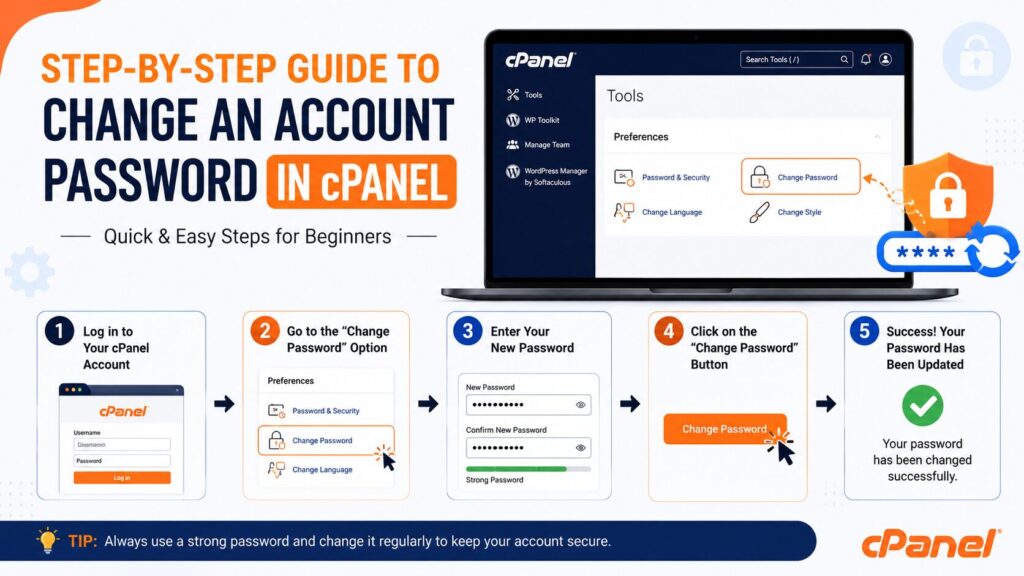
Step 1: Log in to cPanel
Open your hosting control panel.
Enter:
- Username
- Current Password
Click Log in.
Why?
You must access your cPanel dashboard before changing account settings.
What You’ll See
The cPanel home page with different management tools.
Beginner Tip
Bookmark your cPanel login page for easy access.
Common Mistake
Avoid logging in through unknown or fake websites.
Step 2: Open the Password & Security Tool
Inside cPanel, scroll to the Preferences section.
Click:
Password & Security
Why?
This tool allows you to update your account password securely.
What You’ll See
A page asking for:
- Old Password
- New Password
- Confirm New Password
Step 3: Enter Your Current Password
Type your existing cPanel password.
Why?
This confirms you’re the account owner.
What You’ll See
The field accepts your current password.
Beginner Tip
Copy carefully if you’re using a password manager.
Common Mistake
Typing the old password incorrectly.
Step 4: Create a Strong New Password
Now enter a new password.
A strong password should include:
- Uppercase letters
- Lowercase letters
- Numbers
- Special characters
- At least 12–16 characters
Example:
Y7#Cloud@Secure2026!
You can also use the Password Generator inside cPanel.
Why?
Strong passwords are much harder for attackers to guess.
What You’ll See
A password strength meter.
Aim for Very Strong.
Beginner Tip
Use unique passwords for every account.
Common Mistake
Avoid passwords like:
- password123
- admin123
- your name
- birth date
Step 5: Confirm the New Password
Re-enter the same password.
Why?
This ensures there are no typing mistakes.
What You’ll See
Both password fields should match.
Step 6: Save the Changes
Click:
Change your password now!
or
Update Password
(depending on your cPanel version)
Why?
This saves your new password immediately.
What You’ll See
A confirmation message that your password has been changed successfully.
Step 7: Log In Again
Some hosting providers automatically log you out.
Use your new password to log back in.
Beginner Tip
Update your saved password in:
- Browser
- Password manager
- Notes (if securely stored)
Password Strength Guide
| Password Type | Security |
|---|---|
| password123 | ❌ Very Weak |
| MyWebsite1 | ⚠ Fair |
| MySite@2026 | ✅ Good |
| G9!Cloud#Host2026$ | ⭐ Excellent |
Best Practices
For better security:
- Change your password every 3–6 months.
- Use a password manager to create and store strong passwords.
- Never reuse passwords across different websites.
- Enable two-factor authentication (2FA) if available.
- Avoid sharing your password through email or chat.
- Keep your recovery email updated.
- Log out after using public or shared computers.
Common Problems and Solutions
| Problem | Solution |
|---|---|
| Forgot current password | Contact your hosting provider or use the password reset option if available. |
| Password not accepted | Make sure Caps Lock is off and enter the correct current password. |
| Password strength too low | Use longer passwords with symbols and numbers. |
| Cannot access cPanel | Verify your login URL or contact hosting support. |
| Browser issues | Clear your browser cache or try another browser. |
| Password changed but login fails | Wait a minute, then try again using the new password. |
Security Checklist
Before leaving cPanel, make sure:
- ✅ Password changed successfully
- ✅ Password strength is Very Strong
- ✅ Password stored safely
- ✅ Old password deleted from notes
- ✅ Recovery email is correct
- ✅ Logged out from shared devices
Frequently Asked Questions (FAQs)
1. How often should I change my cPanel password?
Every 3–6 months or immediately if you think it has been exposed.
2. Can I use the same password as my email?
No. Each account should have its own unique password.
3. What makes a strong cPanel password?
A mix of uppercase and lowercase letters, numbers, special characters, and at least 12–16 characters.
4. What if I forget my current password?
Contact your hosting provider or use the password recovery option if your host offers one.
5. Does changing my cPanel password affect my website?
No. Your website will continue working normally. Only your cPanel login password changes.
6. Will my email accounts stop working?
No. Email account passwords are separate unless your hosting provider uses linked credentials.
7. Can I change my password from a mobile phone?
Yes. The cPanel interface works in most modern mobile browsers.
8. Is the Password Generator safe?
Yes. The built-in Password Generator creates strong, random passwords that are much more secure than easy-to-guess passwords.
Conclusion
Knowing how to change an account password in cPanel is a simple but important skill for every website owner. A strong password helps protect your website, emails, databases, and other hosting resources from unauthorized access.
Make it a habit to update your cPanel password regularly, use unique passwords for every account, and store them safely with a trusted password manager. Taking these small security steps today can help prevent bigger problems in the future.
