
How to Restore a Backup in cPanel (2026 Beginner’s Guide)
Introduction
Accidentally deleted your website files? Updated your website and something broke? Don’t worry—if you have a backup, you can quickly get your website working again.
Knowing how to restore a backup in cPanel is one of the most valuable skills for any website owner. Whether you run a WordPress blog, business website, or online store, restoring a backup can help recover your data after mistakes, malware attacks, failed updates, or server issues.
In this beginner-friendly guide, you’ll learn what backup restoration is, when you should use it, the different backup types available in cPanel, and the exact steps to restore your website safely.
What Is Restoring a Backup in cPanel?
Restoring a backup in cPanel means replacing your current website files, databases, or emails with a previously saved copy.
Think of it like the Undo button on your computer.
For example:
You accidentally delete important website files today. Last week, you created a backup. By restoring that backup, your website returns to the way it was last week.
Instead of rebuilding your website from scratch, you simply restore the saved copy.

Why Is It Important?
Restoring backups protects your website from unexpected problems.
Benefits
- Recover deleted website files
- Restore hacked websites
- Undo failed WordPress updates
- Recover corrupted databases
- Restore lost emails
- Save time during emergencies
- Minimize website downtime
Common situations include:
- Website hacked
- Plugin update breaks WordPress
- Deleted files accidentally
- Database corruption
- Server migration problems
Tip: A backup is only useful if you know how to restore it.
Types of Backups in cPanel
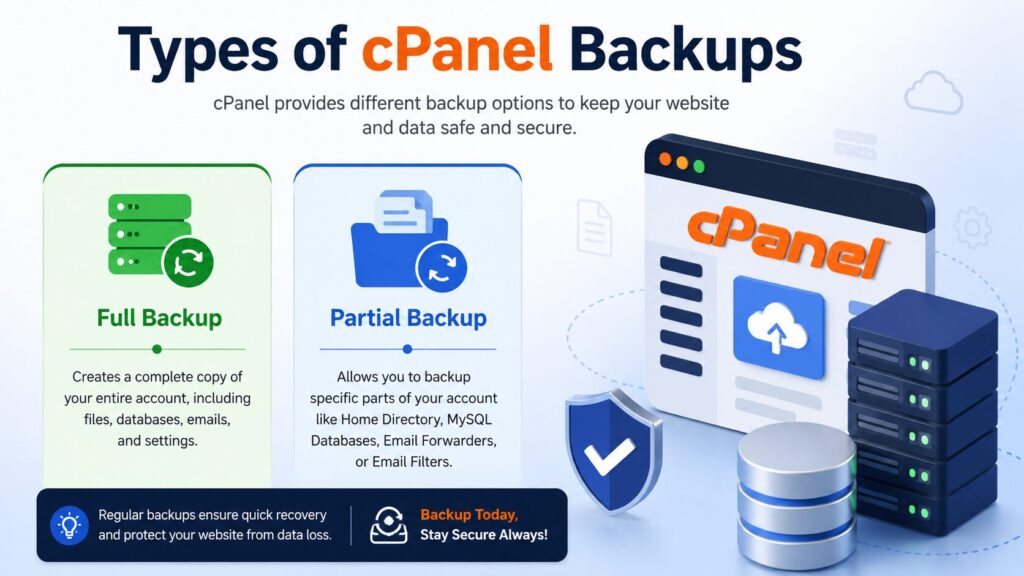
| Backup Type | What It Restores | Best For |
|---|---|---|
| Full Backup | Entire hosting account | Complete account recovery |
| Home Directory Backup | Website files only | Recover deleted files |
| MySQL Database Backup | Website database | Fix database issues |
| Email Forwarders & Filters | Email settings | Restore email configuration |
Step-by-Step Guide: How to Restore a Backup in cPanel
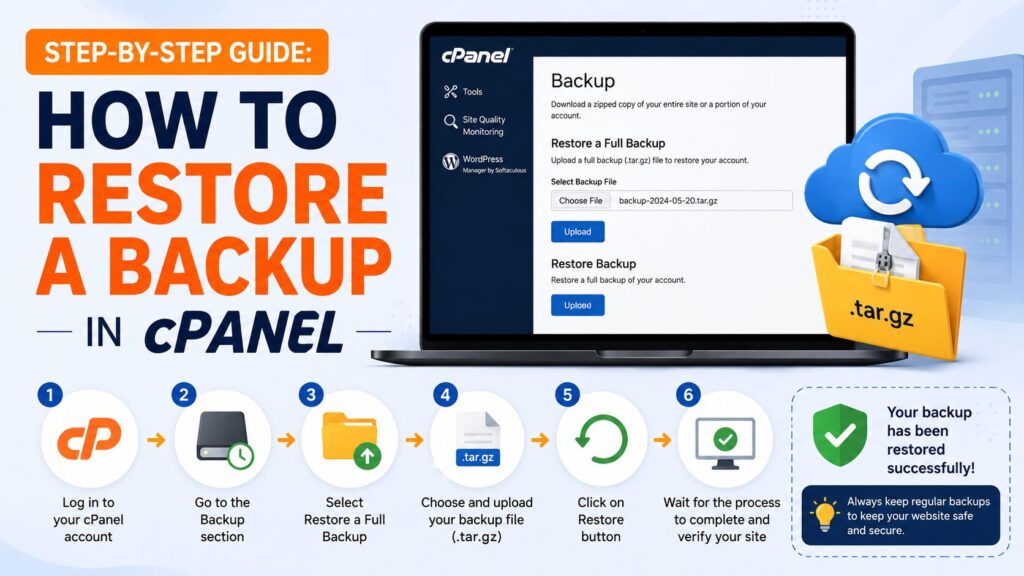
Step 1: Log in to cPanel
What to do
Sign in to your hosting account and open cPanel.
Why you’re doing it
cPanel contains all backup and restore tools.
What you’ll see
The cPanel dashboard with various management sections.
Beginner Tip
Bookmark your cPanel login page for future use.
Common Mistake
Using the wrong username or password.
Step 2: Open the Backup Tool
What to do
Scroll to the Files section.
Click Backup or Backup Wizard.
Why you’re doing it
This is where you can upload and restore your backup files.
What you’ll see
Several restore options for:
- Home Directory
- MySQL Databases
- Email Forwarders
- Email Filters
Beginner Tip
Most beginners should use the Backup Wizard because it’s easier.
Common Mistake
Opening File Manager instead of Backup.
Step 3: Choose What You Want to Restore
You can restore only the part you need.
Home Directory
Restores:
- Website files
- Images
- Themes
- Uploads
Use this if your website files are missing.
MySQL Database
Restores:
- WordPress posts
- Pages
- Products
- Users
- Settings
Use this if your website shows database errors.
Email Forwarders
Restores email forwarding rules.
Email Filters
Restores spam and email filtering settings.
Why you’re doing it
Restoring only what’s needed saves time and avoids overwriting unrelated data.
Beginner Tip
If only your website files are damaged, don’t restore everything.
Common Mistake
Uploading the wrong backup file.
Step 4: Upload the Backup File
What to do
Click Choose File.
Select the correct backup from your computer.
Click Upload.
Why you’re doing it
This sends the backup to your hosting account.
What you’ll see
A progress bar during upload.
Once complete, cPanel will begin restoring the data.
Beginner Tip
Do not close the browser until the process finishes.
Common Mistake
Refreshing the page during upload.
Step 5: Wait for the Restoration to Finish
What to do
Allow cPanel to complete the restoration.
Why you’re doing it
Interrupting the process may leave your website incomplete.
What you’ll see
A success confirmation or completion message.
Beginner Tip
Large backups may take several minutes.
Common Mistake
Closing the browser too early.
Step 6: Check Your Website
What to do
Visit your website.
Test:
- Homepage
- Contact page
- Images
- Login page
- Forms
- Database functionality
Why you’re doing it
To ensure everything has been restored correctly.
Beginner Tip
Clear your browser cache if changes don’t appear immediately.
Common Mistake
Assuming restoration succeeded without testing.
Best Practices
- Create backups regularly.
- Store backups in multiple locations.
- Keep copies on cloud storage and your computer.
- Test backups occasionally.
- Name backups with dates.
- Remove outdated backups.
- Keep enough hosting storage available.
- Create a new backup before restoring an old one.
Common Problems and Solutions
| Problem | Solution |
|---|---|
| Backup won’t upload | Check file size limits and upload again |
| Upload is very slow | Use a stable internet connection |
| Backup file is corrupted | Download a new backup copy |
| Browser times out | Try another browser or upload during low traffic hours |
| Website still broken | Restore both files and database |
| Storage full | Delete unnecessary files before restoring |
| Permission errors | Contact your hosting provider |
Checklist Before Restoring
- Backup file available
- Correct backup selected
- Current website backed up
- Enough storage space
- Stable internet connection
- Logged into the correct cPanel account
Frequently Asked Questions (FAQs)
1. Is restoring a backup in cPanel safe?
Yes, as long as you’re restoring a trusted backup.
2. Will restoring overwrite my current website?
Usually yes. That’s why creating a fresh backup first is recommended.
3. Can I restore only my database?
Yes. cPanel allows separate database restoration.
4. Can I restore only website files?
Yes. Restore the Home Directory backup.
5. How long does restoration take?
Small websites usually finish in a few minutes. Large backups may take longer.
6. What if I don’t have a backup?
Contact your hosting provider. They may have automatic server backups.
7. Does cPanel create automatic backups?
Some hosting providers enable automatic backups, while others require you to create them manually.
8. Can I restore a WordPress website using cPanel?
Yes. Restore both the website files and the database.
9. What happens if the restoration fails?
Check the backup file, storage space, and permissions. If needed, contact your hosting provider.
10. Should I keep multiple backups?
Yes. Keeping several backup versions helps you recover from different types of problems.
Conclusion
Learning how to restore a backup in cPanel can save your website from unexpected disasters. Whether you’ve accidentally deleted files, experienced a failed update, or encountered malware, restoring a backup is often the fastest way to recover.
Always create backups before making major website changes, store them safely, and test them occasionally. A reliable backup strategy gives you peace of mind and helps keep your website running smoothly.
Final Tip: The best backup is the one you’ve tested—and know how to restore.
